
Jump to German (DE) version
How to add Google Fonts to campaigns
Want to elevate your marketing and keep your campaign designs perfectly aligned with your brand identity? The secret is incorporating your unique brand typography. Google Fonts give your campaigns a polished, professional look that stands out in your subscribers' inboxes.
Here is a step-by-step guide on how to add a Google Font to your campaigns in Custobar’s new Content Editor using an embed code.
Step 1. Open the Fonts tab in Custobar
- Log in to Custobar and navigate to your email campaign draft or template within the Content Editor.
- In the left-hand sidebar menu, locate and click on the Fonts icon.
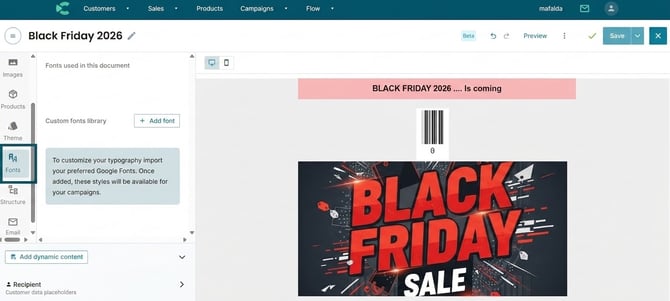
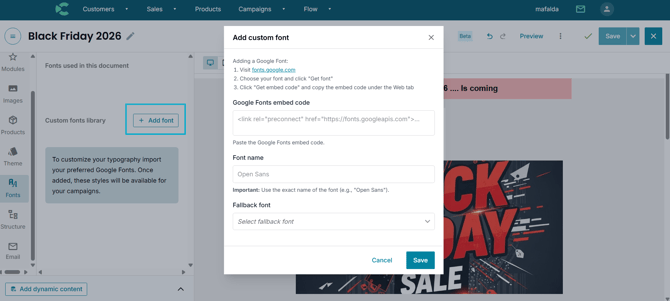
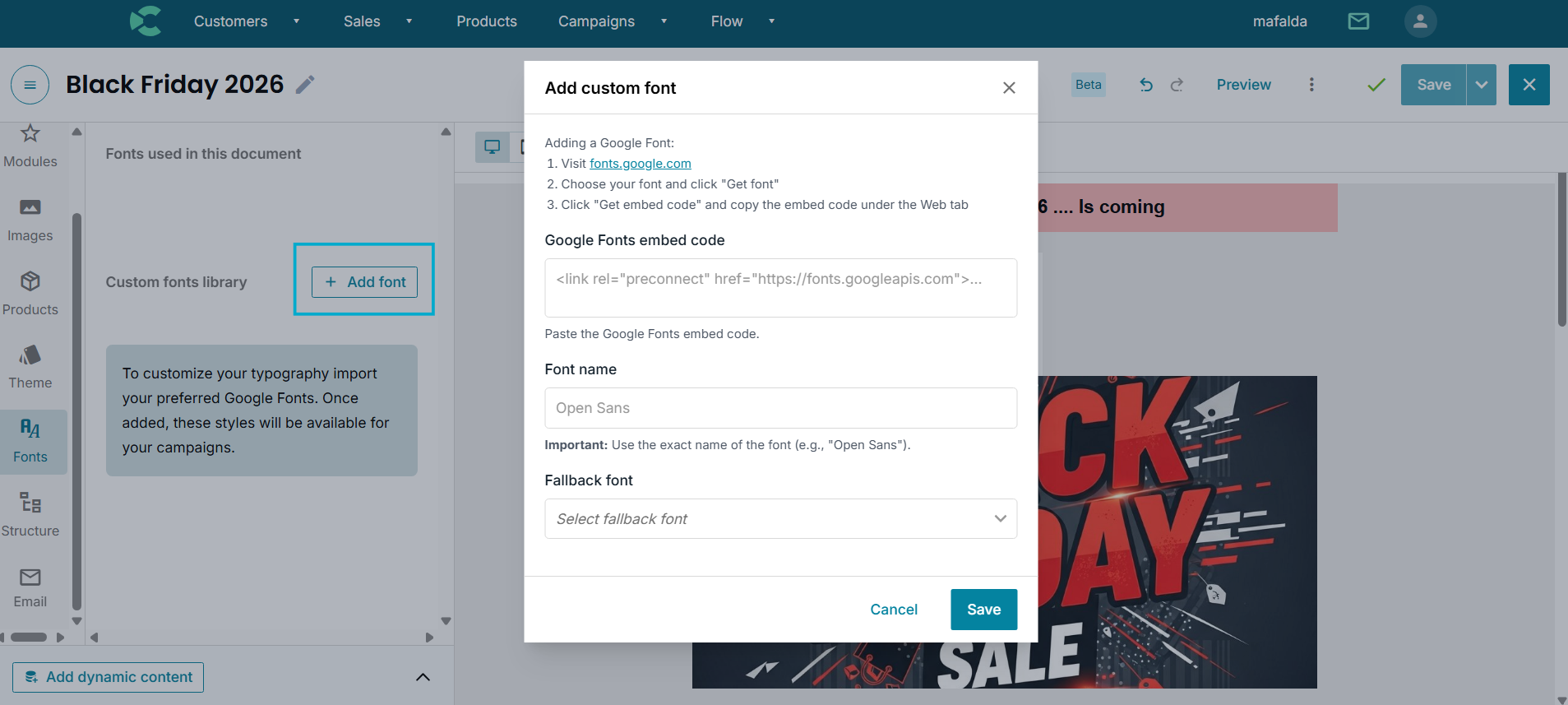
- Click the + Add font button to open the custom font setup modal window.
Step 2. Select and copy your font from Google Fonts
- Open a new tab and go to fonts.google.com.
- Use the search bar to find your desired font family (e.g. Maven Pro).
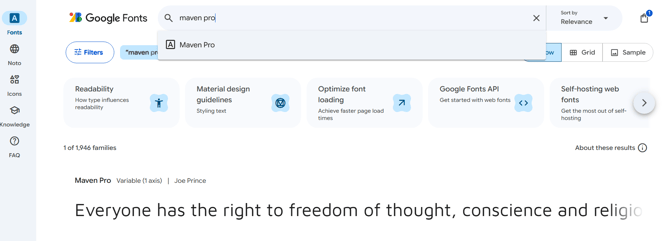
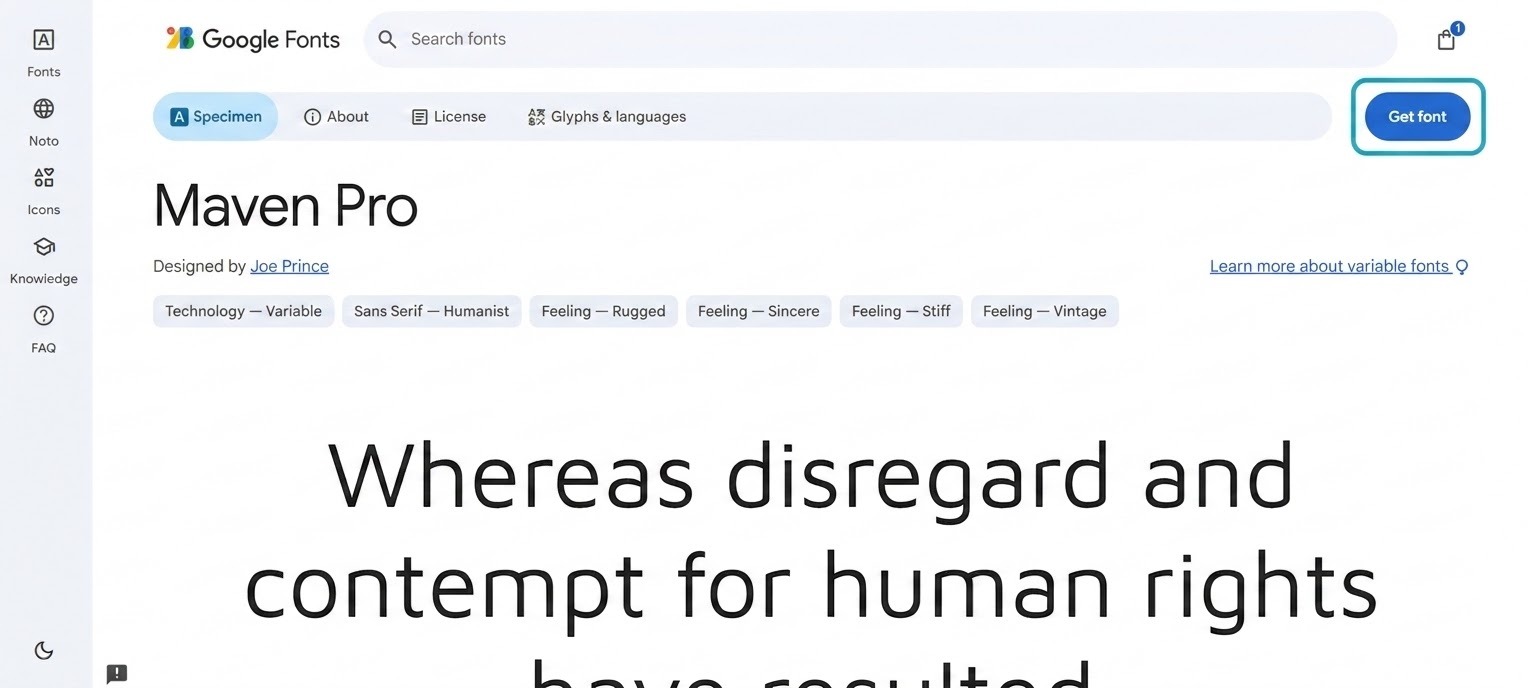
- Click on the font, then click the Get font button in the top right corner.
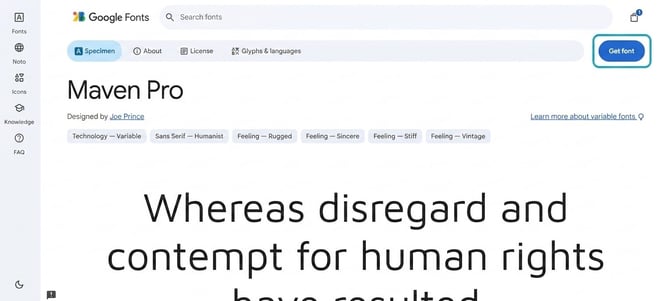
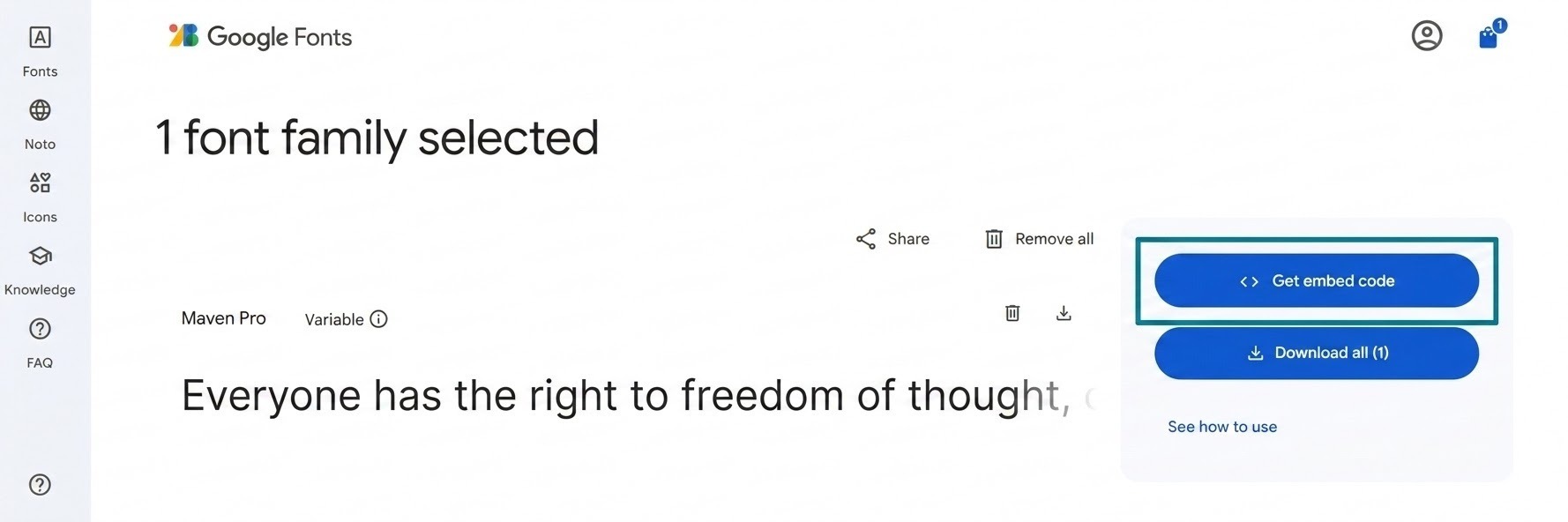
- On the selection page, click Get embed code.
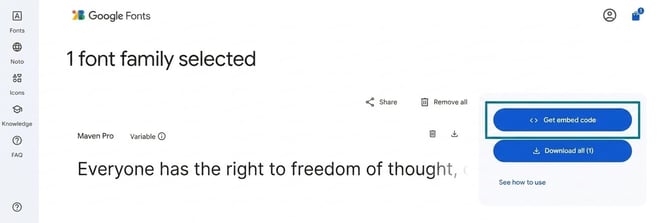
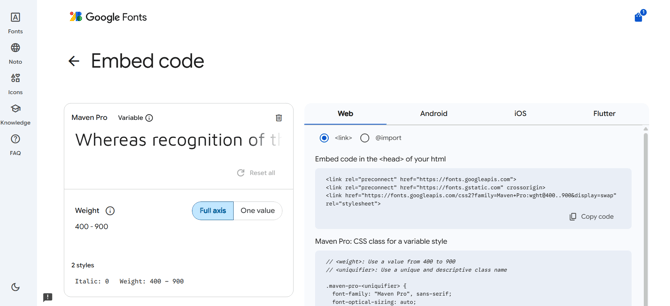
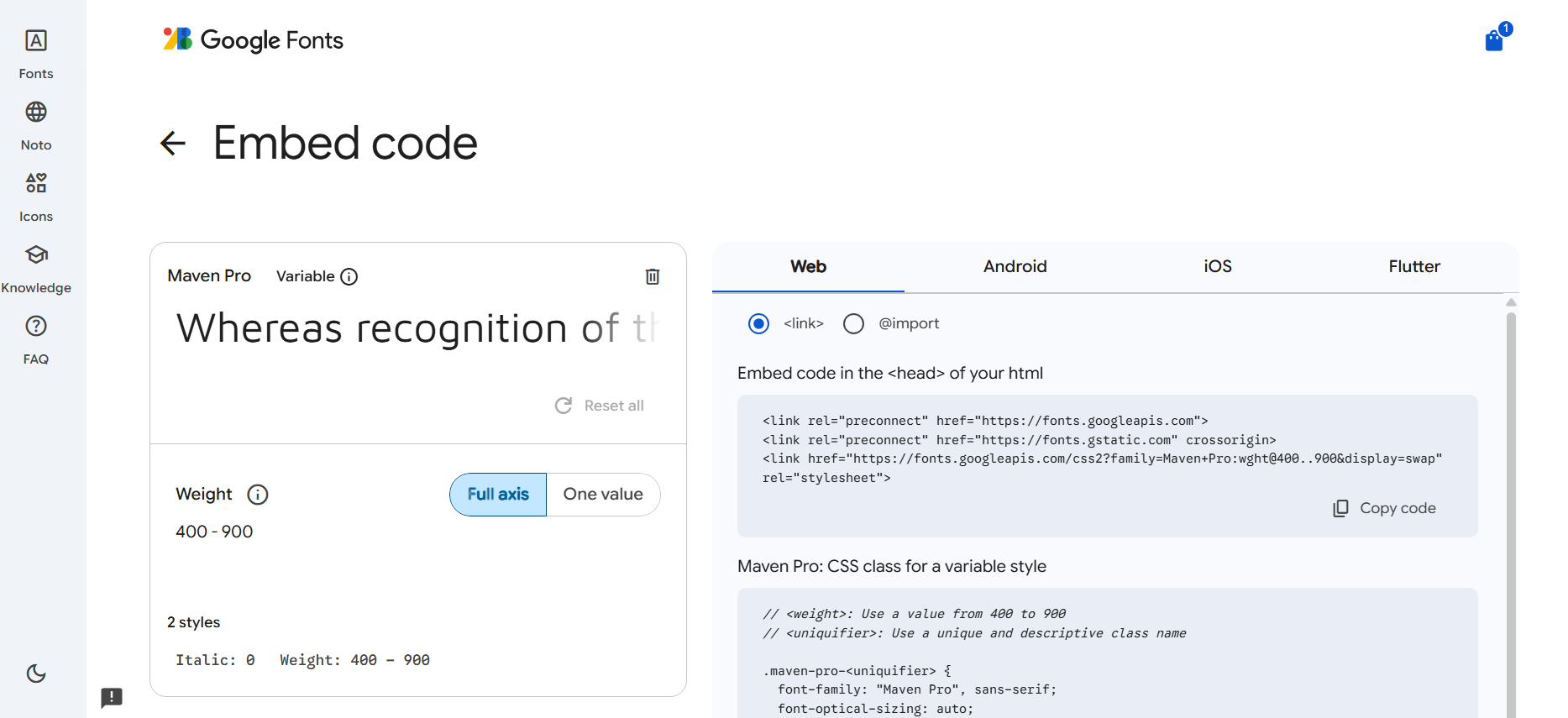
- Under the Web tab, copy the provided <link> embed code snippet.
Note: To maintain clean code and ensure optimal performance inside the editor, focus on embedding a single font family at a time.
Step 3. Paste the embed code and verify font details
- Return to the Custobar editor tab.
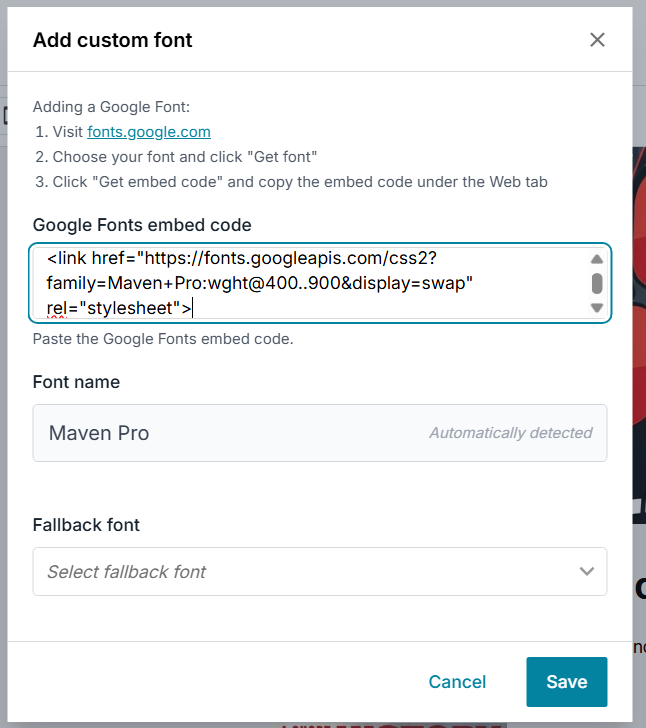
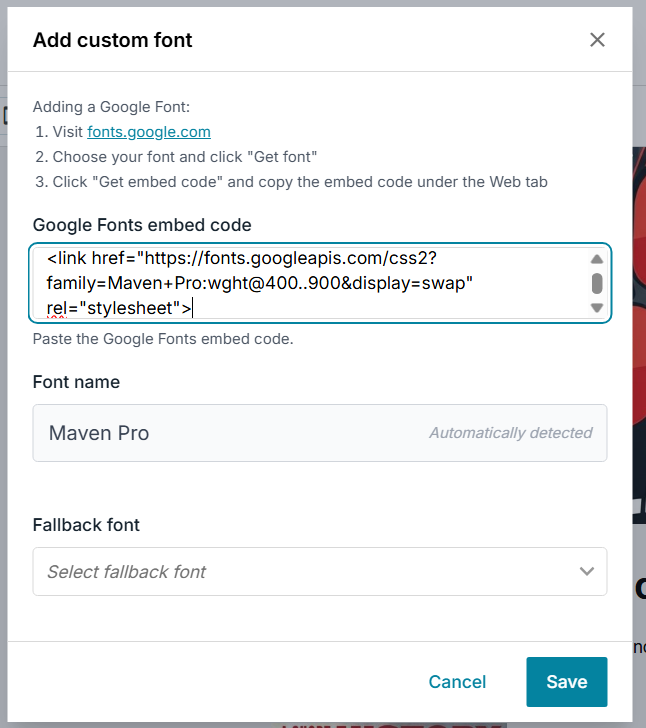
- Paste the copied code into the Google Fonts embed code field.
- Custobar will automatically detect and populate the Font name for you.
Step 4. Choose a fallback font and save
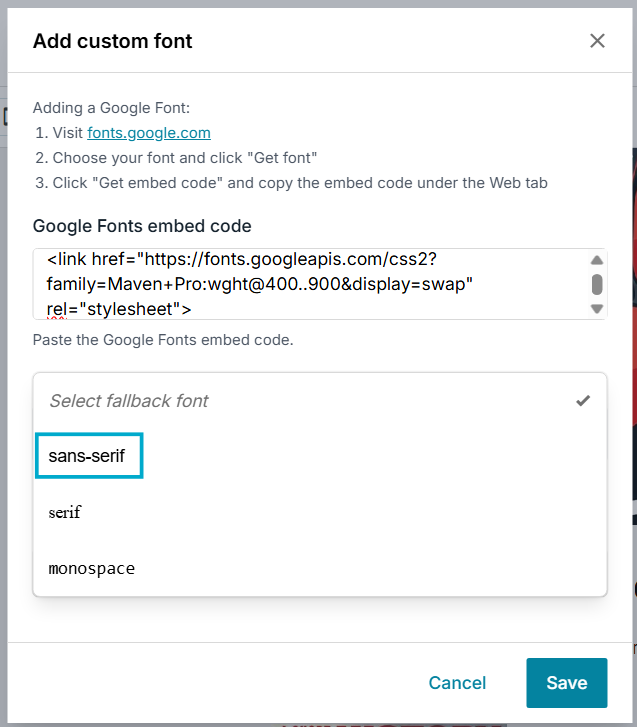
- Click the Fallback font drop-down menu and select an appropriate generic family (such as sans-serif, serif, or monospace).
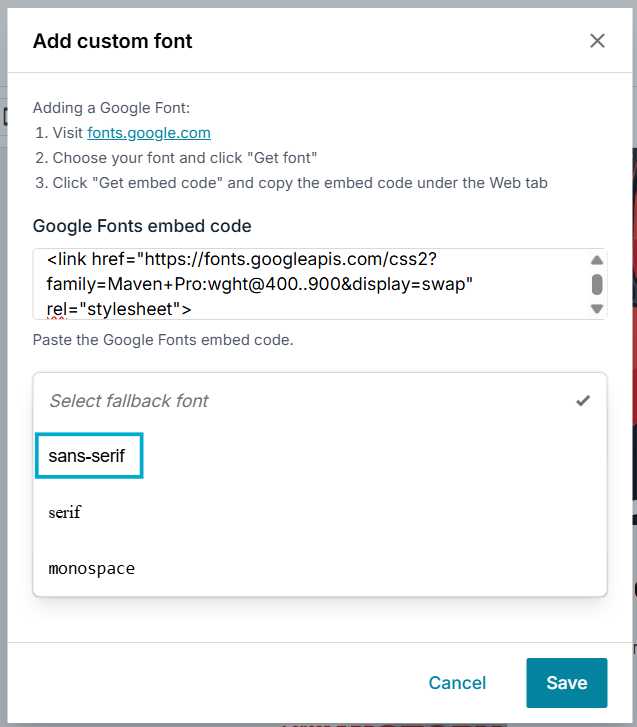
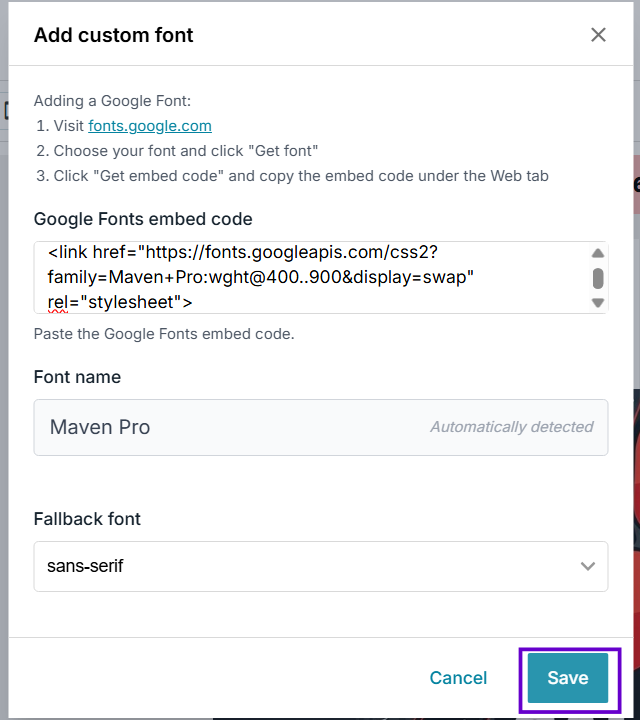
- Click Save to add the custom font to your library.
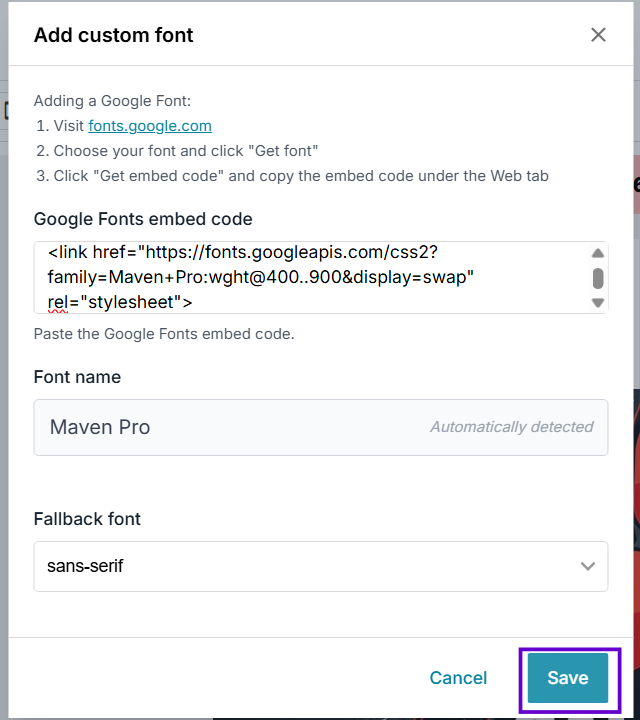
- Click Save on the top toolbar to preserve your campaign settings.
Why set a fallback font? A fallback font serves as your "Plan B". If a recipient’s email client does not support custom web fonts, the fallback ensures your content remains readable and maintains a clean, professional aesthetic.
Final thoughts
Failing to use consistent typography can dilute your brand identity across email campaigns — it's as simple as that. Adding custom Google Fonts to Custobar ensures your communications stay sharp, on-brand, and visually engaging.
Wie man benutzerdefinierte Google Fonts zu Custobar hinzufügt
Möchten Sie Ihr Marketing auf ein neues Level heben und Ihre Kampagnendesigns perfekt an Ihre Markenidentität anpassen? Das Geheimnis liegt in der Einbindung Ihrer einzigartigen Markentypografie. Google Fonts verleihen Ihren Kampagnen einen professionellen, ansprechenden Look, der im Posteingang Ihrer Abonnenten auffällt.
Hier ist eine Schritt-für-Schritt-Anleitung, wie Sie im neuen Inhaltseditor von Custobar mithilfe eines Einbettungscodes eine Google Font zu Ihren Kampagnen hinzufügen.
Schritt 1. Öffnen Sie den Tab „Schriftarten“ (Fonts) in Custobar
- Melden Sie sich bei Custobar an und navigieren Sie im Inhaltseditor zu Ihrem E-Mail-Kampagnen-Entwurf oder Ihrer Vorlage.
- Suchen und klicken Sie in der linken Seitenleiste auf das Symbol Schriftarten (Fonts).
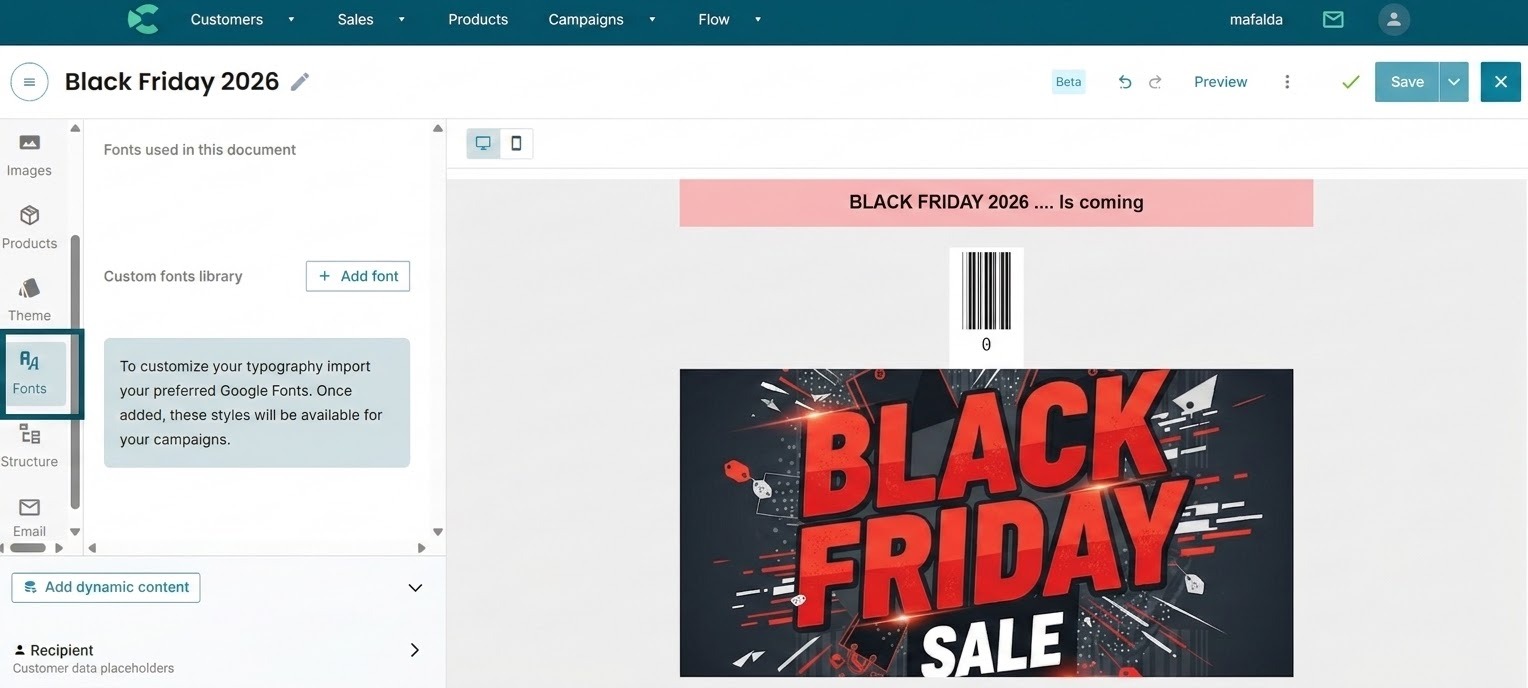
- Klicken Sie auf die Schaltfläche + Schriftart hinzufügen (+ Add font), um das Modalfenster zur Einrichtung benutzerdefinierter Schriftarten zu öffnen.
Schritt 2. Wählen Sie Ihre Schriftart bei Google Fonts aus und kopieren Sie diese
- Öffnen Sie einen neuen Tab und gehen Sie zu fonts.google.com.
- Verwenden Sie die Suchleiste, um Ihre gewünschte Schriftfamilie zu finden (z. B. Maven Pro).
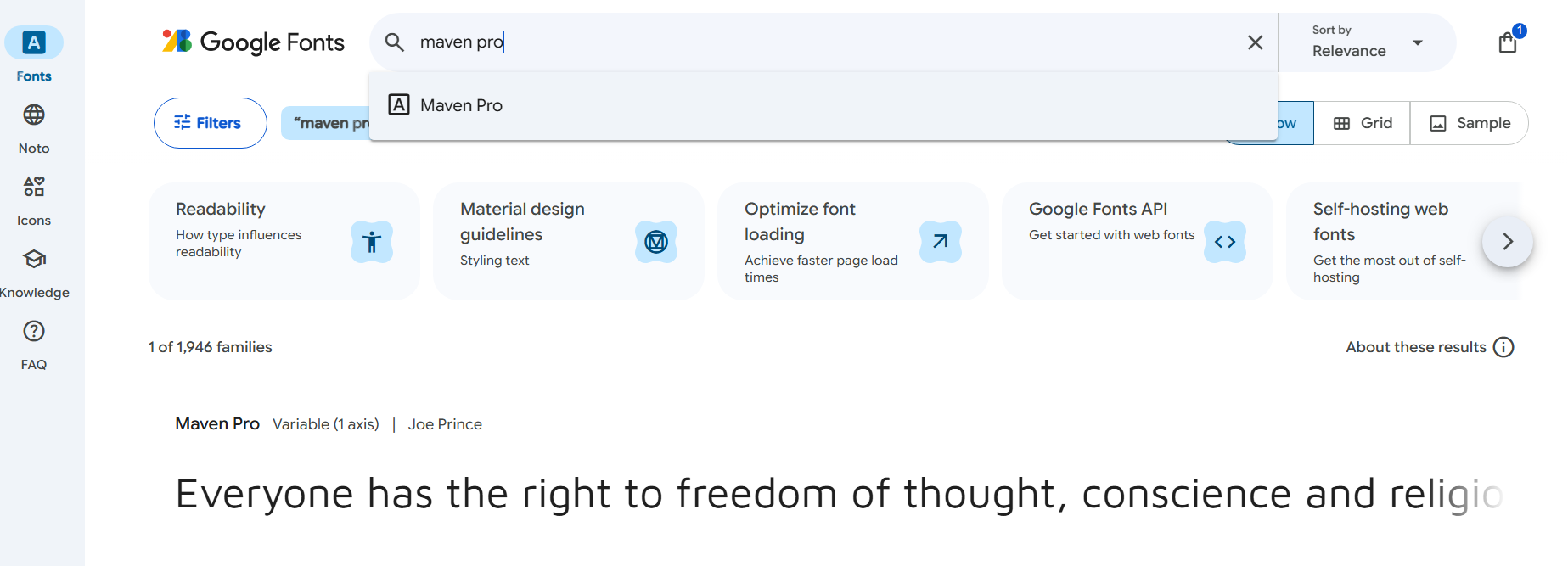
- Klicken Sie auf die Schriftart und anschließend oben rechts auf die Schaltfläche Schriftart abrufen (Get font).
- Klicken Sie auf der Auswahlseite auf Einbettungscode abrufen (Get embed code).
- Kopieren Sie unter dem Reiter Web den bereitgestellten <link>-Einbettungscode-Snippet.
Hinweis: Um sauberen Code zu gewährleisten und eine optimale Leistung im Editor sicherzustellen, konzentrieren Sie sich darauf, jeweils nur eine Schriftfamilie einzubetten.
Schritt 3. Fügen Sie den Einbettungscode ein und überprüfen Sie die Schriftdetails
- Kehren Sie zum Custobar-Editor-Tab zurück.
- Fügen Sie den kopierten Code in das Feld Google Fonts Einbettungscode ein.
- Custobar erkennt und liest den Schriftnamen automatisch für Sie aus.
Schritt 4. Wählen Sie eine Ersatzschriftart (Fallback Font) und speichern Sie
- Klicken Sie auf das Dropdown-Menü Ersatzschriftart (Fallback font) und wählen Sie eine passende generische Familie (wie sans-serif, serif oder monospace).
- Klicken Sie auf Speichern (Save), um die benutzerdefinierte Schriftart zu Ihrer Bibliothek hinzuzufügen.
- Klicken Sie in der oberen Symbolleiste auf Speichern (Save), um Ihre Kampagneneinstellungen zu sichern.
Warum eine Ersatzschriftart festlegen? Eine Ersatzschriftart dient als Ihr „Plan B“. Wenn der E-Mail-Client eines Empfängers keine benutzerdefinierten Web-Schriftarten unterstützt, stellt die Ersatzschriftart sicher, dass Ihr Inhalt lesbar bleibt und eine saubere, professionelle Ästhetik bewahrt.
Abschließende Gedanken
Wenn Sie keine einheitliche Typografie verwenden, kann dies Ihre Markenidentität in E-Mail-Kampagnen schwächen — so einfach ist das. Das Hinzufügen benutzerdefinierter Google Fonts zu Custobar stellt sicher, dass Ihre Kommunikation klar, markengerecht und visuell ansprechend bleibt.