
Jump to DE Version
Tutorial in English (German below)
Below is a step-by-step guide guiding you to build and customise product rows.
Phase 1: Choosing your layout
Before you start designing, decide how many products you want to feature in a single row.
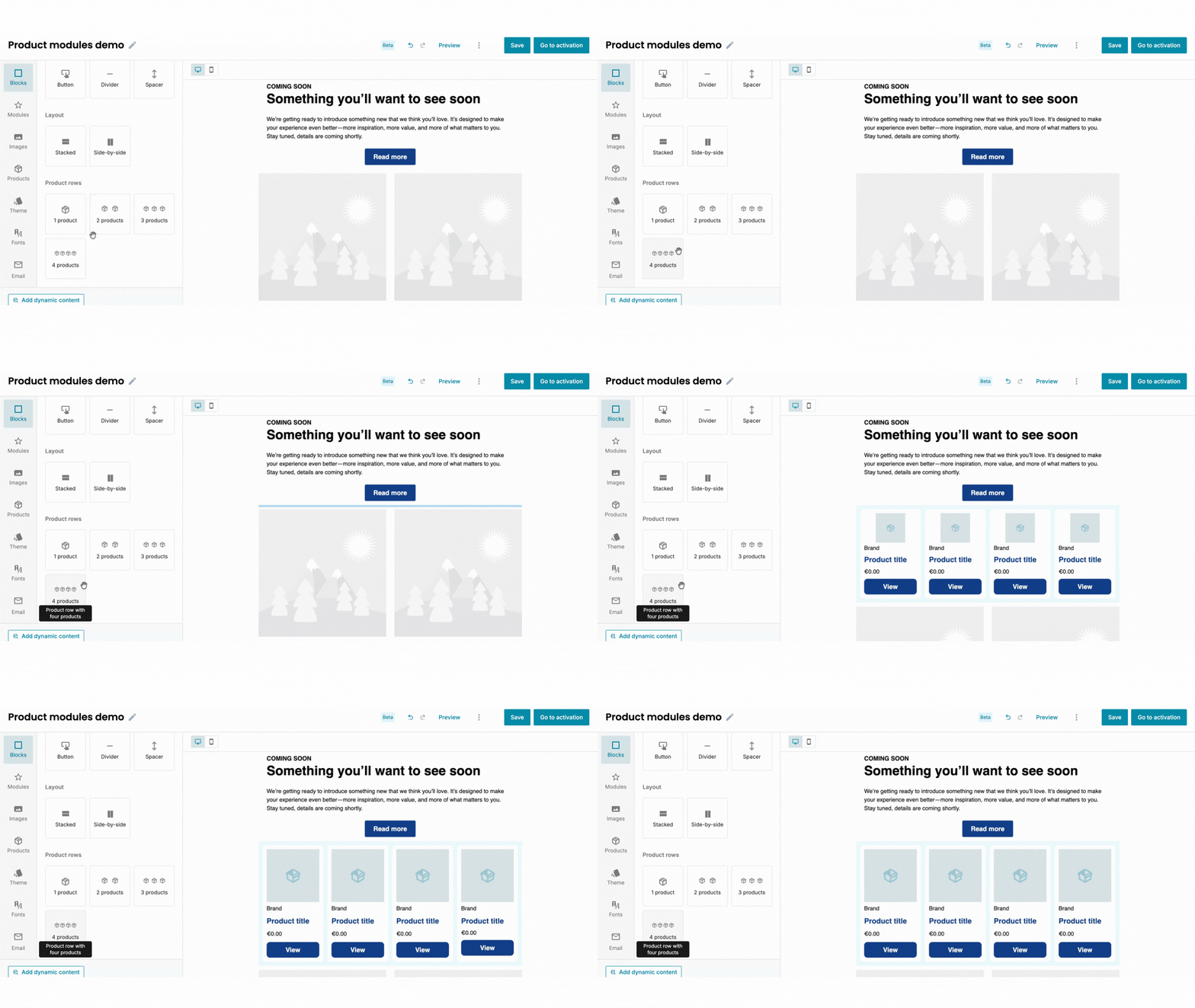
- Open the email editor and navigate to the Blocks tab in the left-hand menu.
- Scroll to the Product rows section.
- Drag and drop a product row (1, 2, 3, or 4 products) into your email template.
Phase 2: Entering "designer mode" (ungrouping)
To change the design – like moving the price above the title or adding new product data fields – you must "unlock" the product column.
Note! If your product row or column is not locked, you can go directly to phase 3.
- Click on the product row you just added to the email.
- Locate the Group/Ungroup icon (two overlapping squares) in the top right corner of the block.
- Click it to Ungroup.
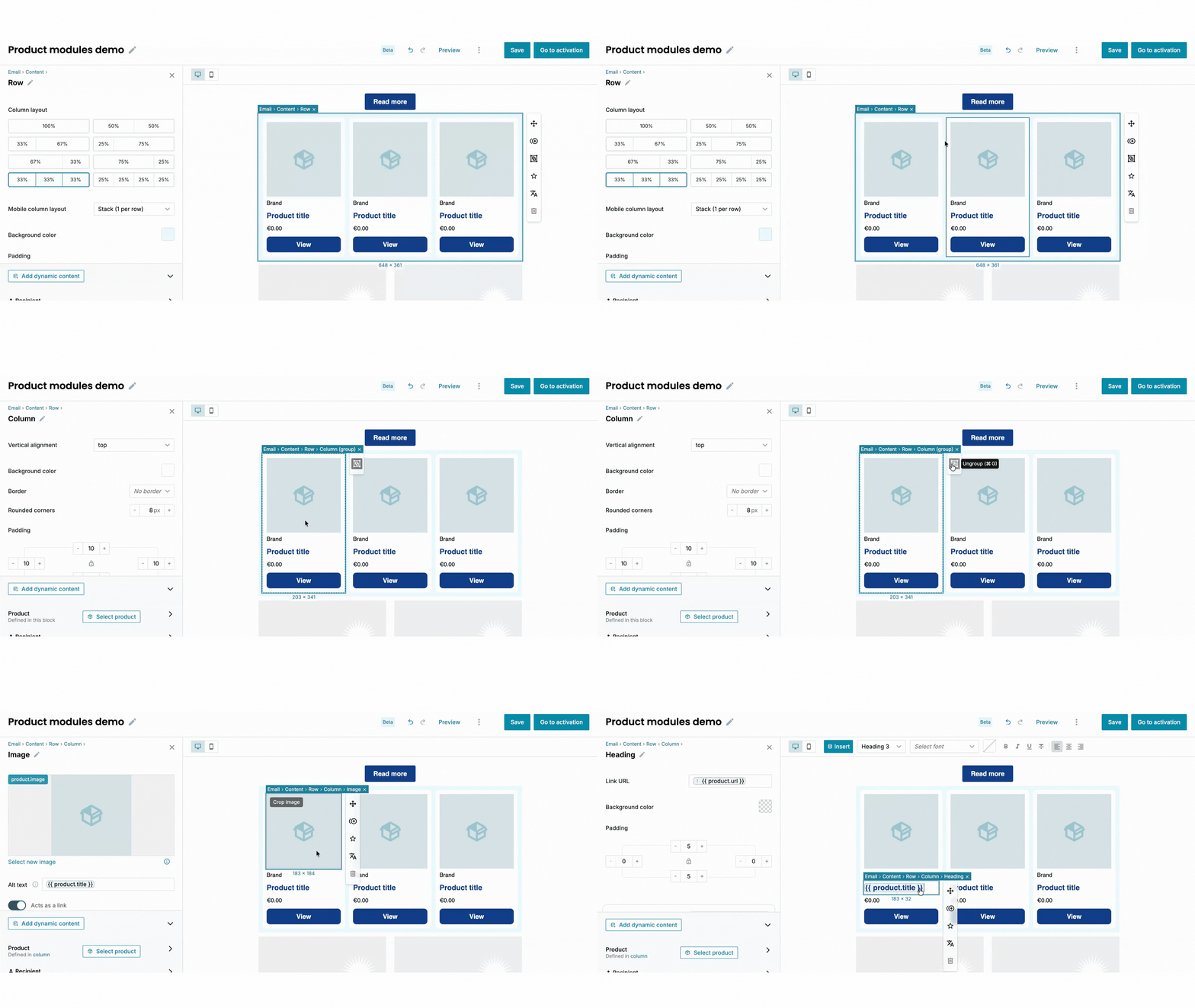
What changed? You are now in "designer mode" of a single product. You will see every available data field (like sale prices or brand names), even if they look cluttered or "empty" right now.
Phase 3: Customising the content
Now that the product row is a collection of separate parts, you can customize them individually.
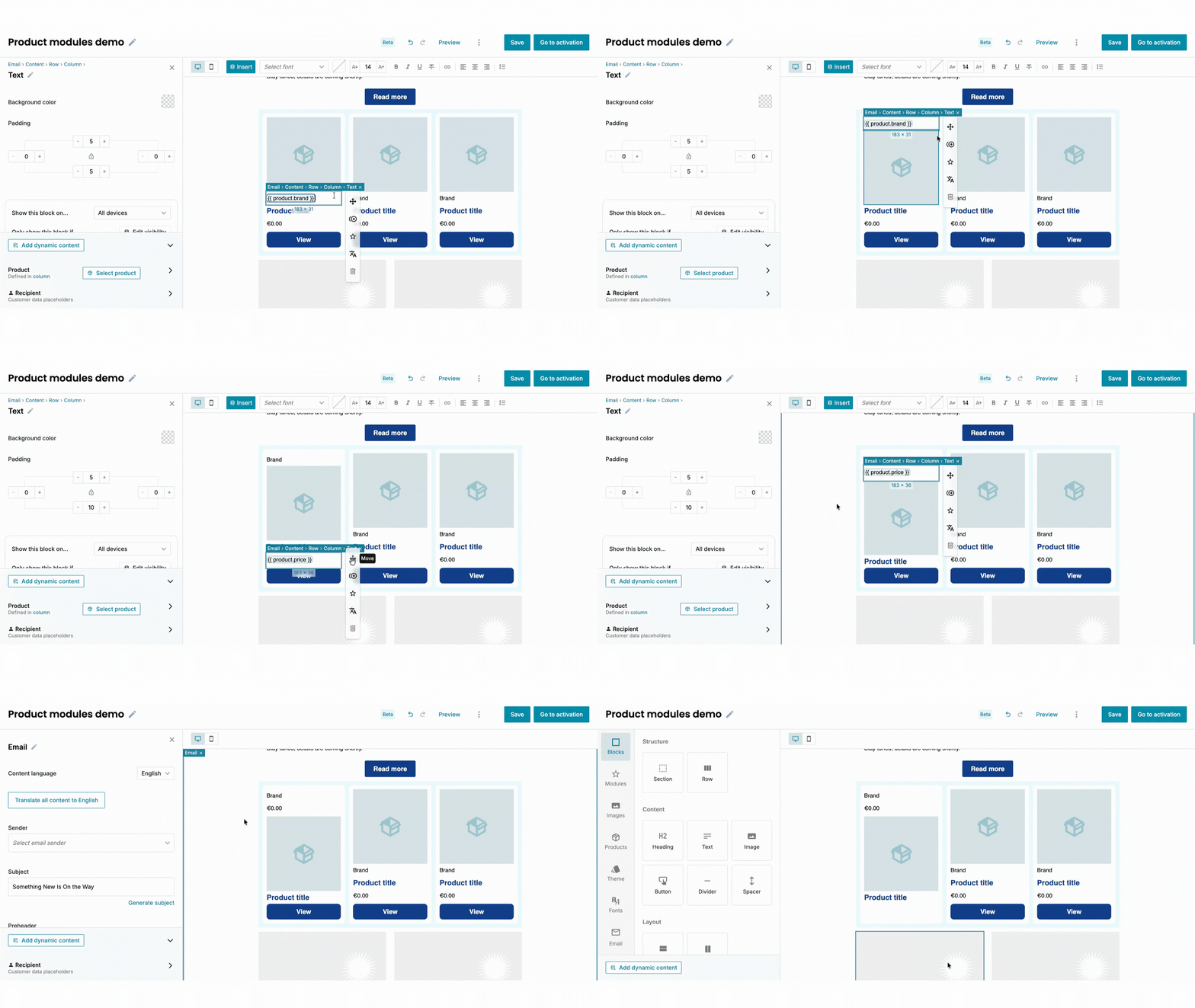
Rearrange blocks
Drag the image, text, or button blocks to change their order.
Add more data
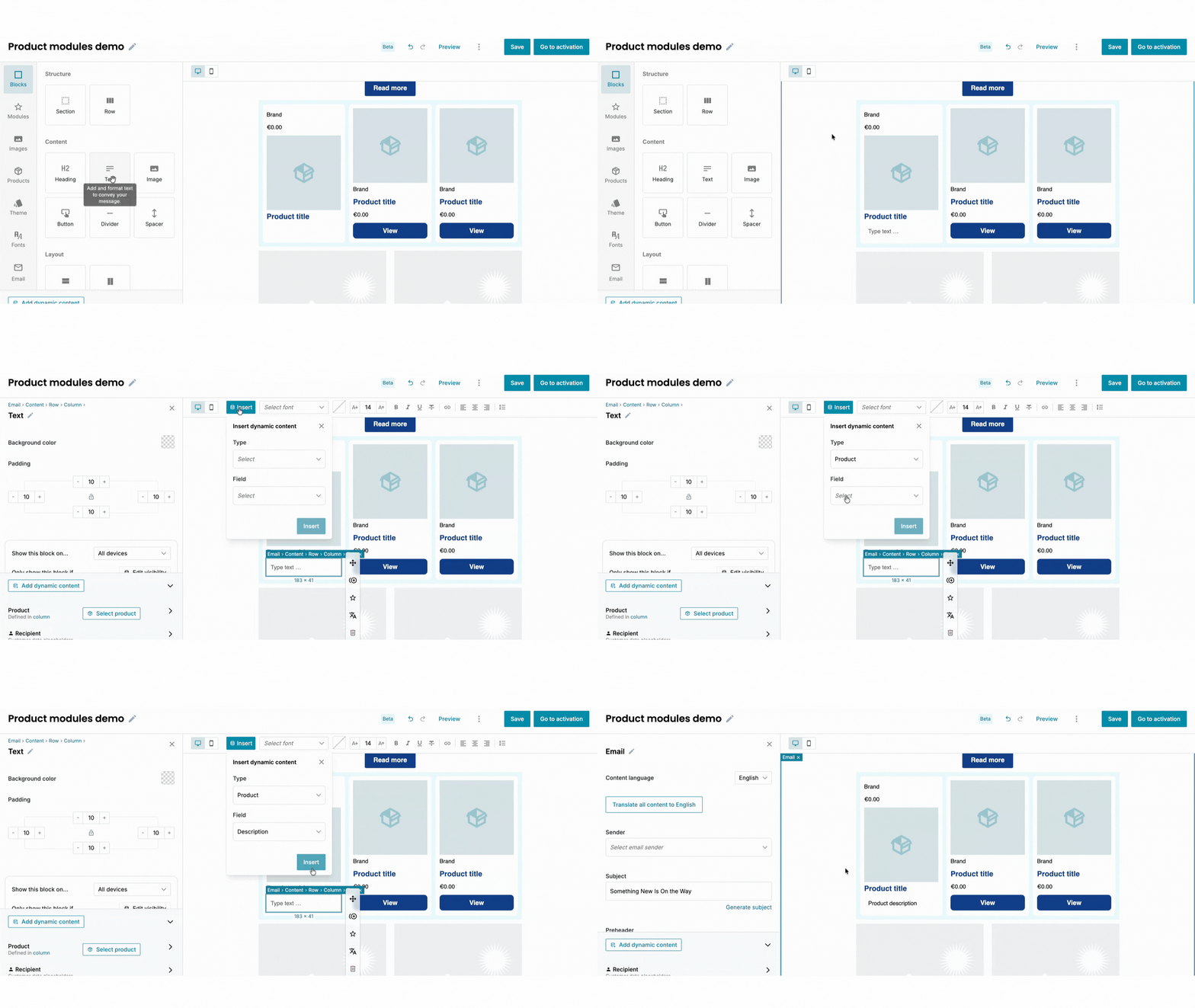
You can drag in additional text blocks to display other product data fields.
Adjust visibility
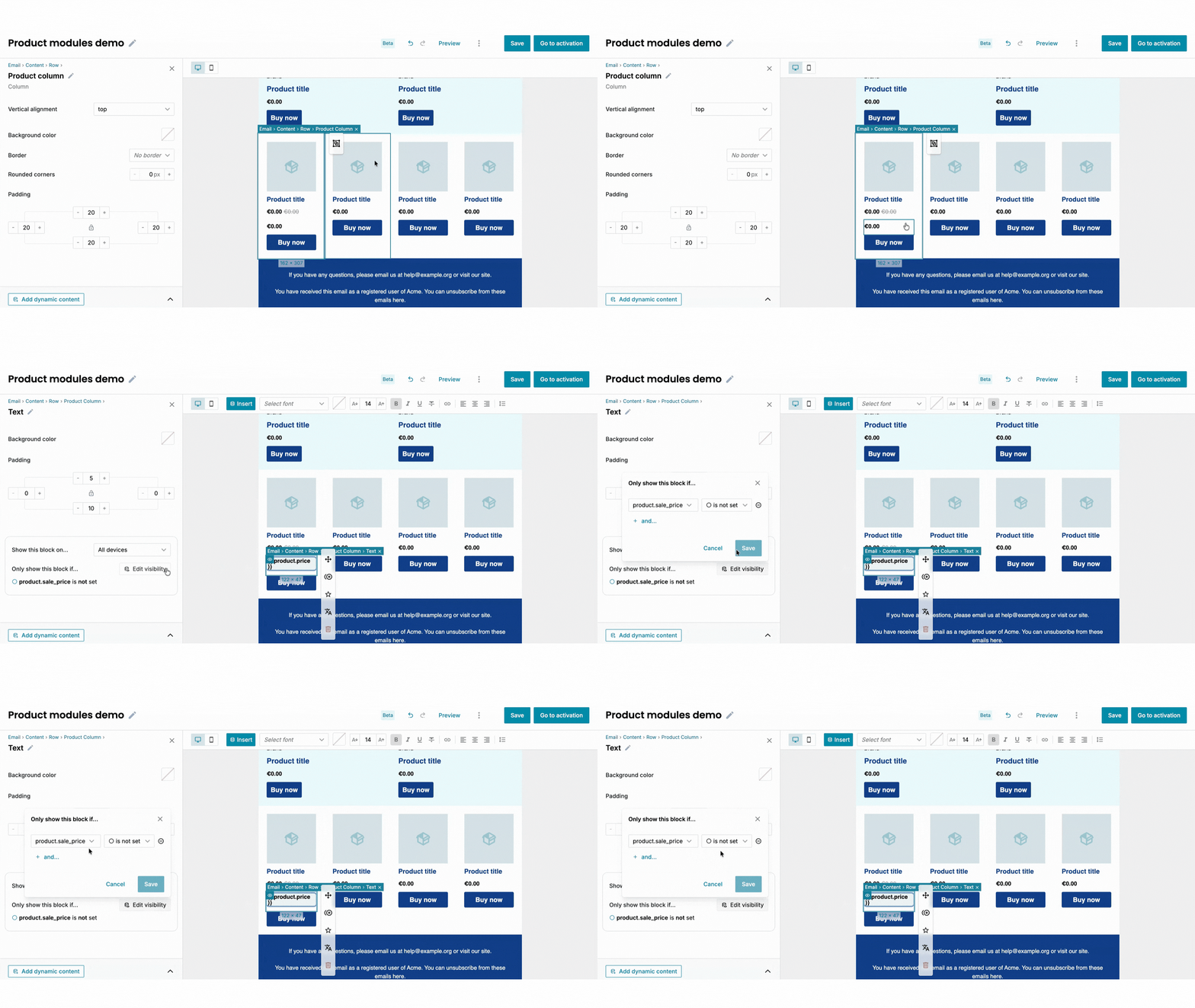
You can set rules so that certain elements only appear if the data exists.
For example, these rules are already in place for showing the price of the product:
- Example 1: The price with a "sale price" is shown only if the product has a sale price (product.sale_price is set).
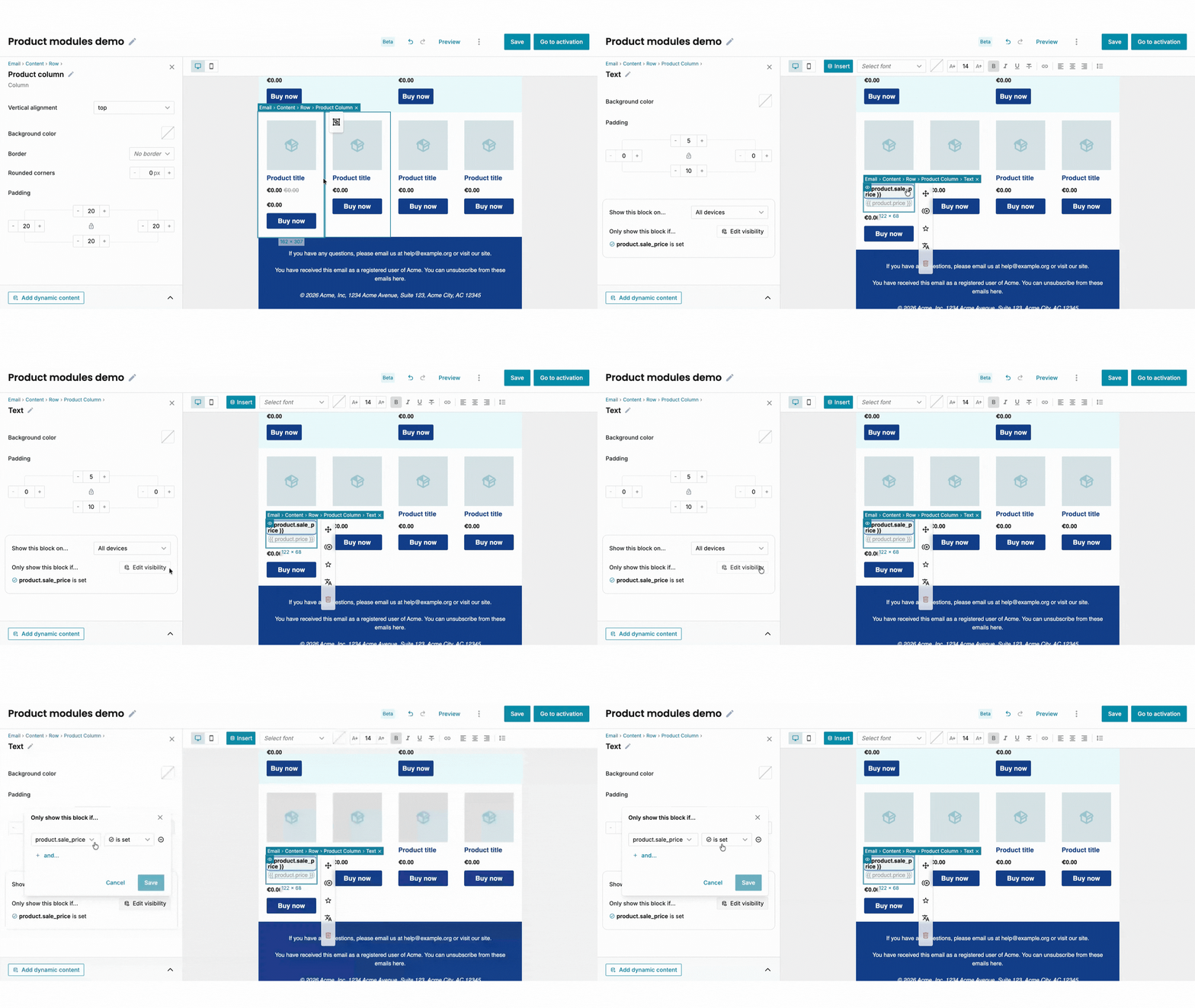
- Example 2: The price with a “standard price” is shown only if the product doesn’t have a sale price (product.sale_price is NOT set).
Phase 4: Locking the design for everyday use and the best preview mode
Once your design is perfect, you should "lock" it back into its grouped state to protect the alignment for future use and previewing.
- Click the Group icon again to return to the gouped state.
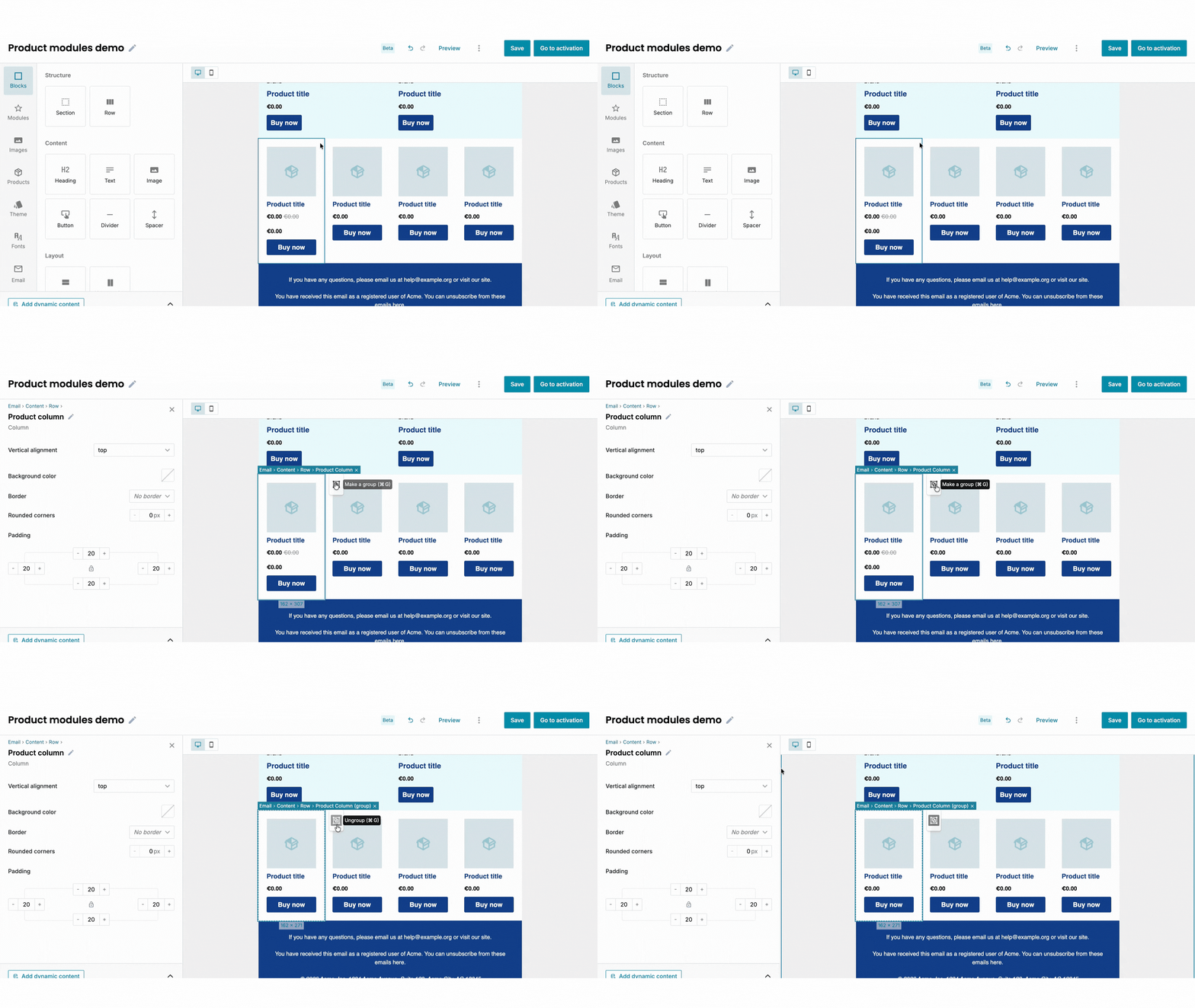
- Verify the preview: In this state, you see a "What You See Is What You Get" view. It will only show the specific product details as they will appear in the final email.
- Test with products: Drag a product from your "Products" tab into the placeholder to ensure the data fills in correctly. Try out with products with or without a sale price!
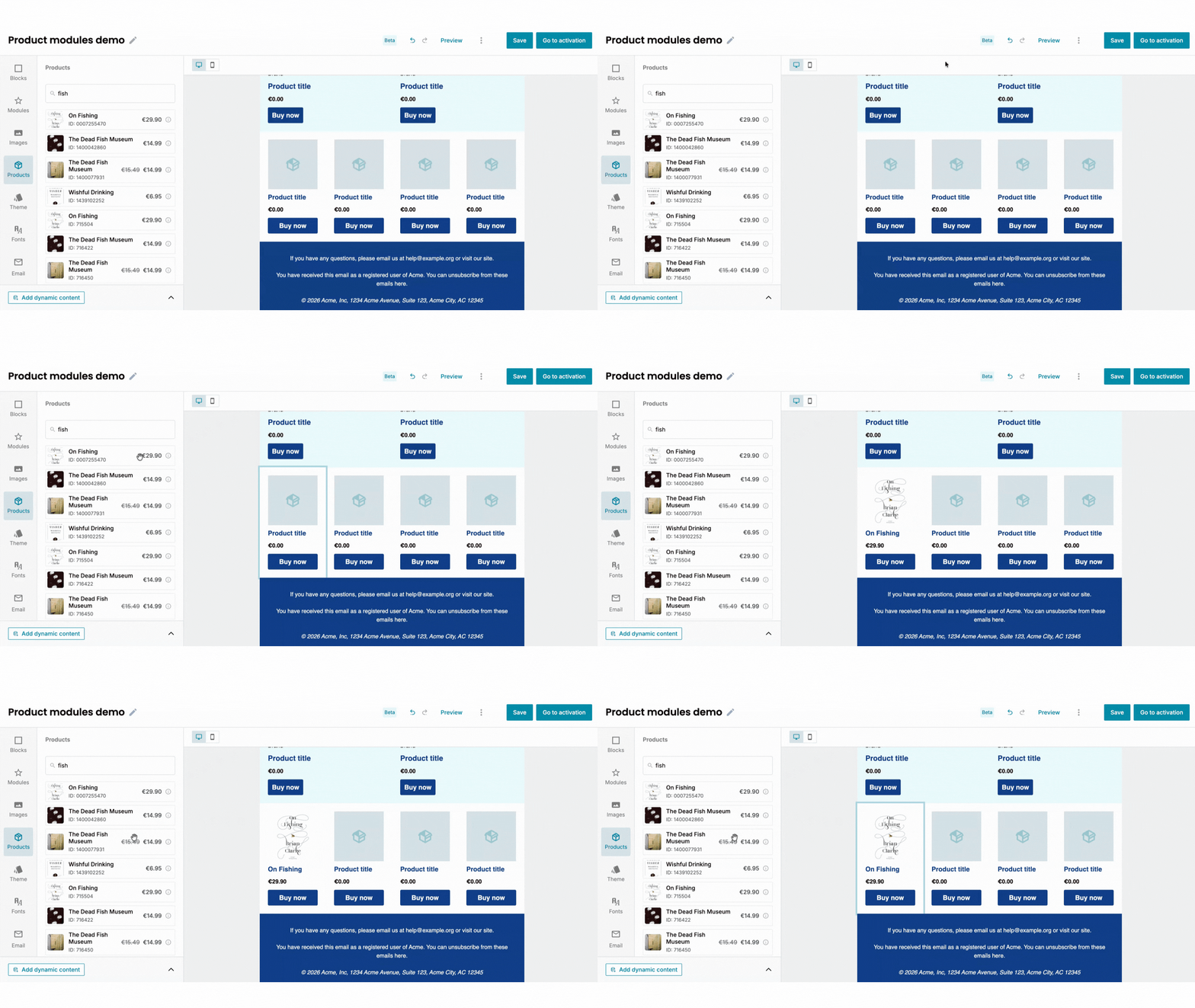
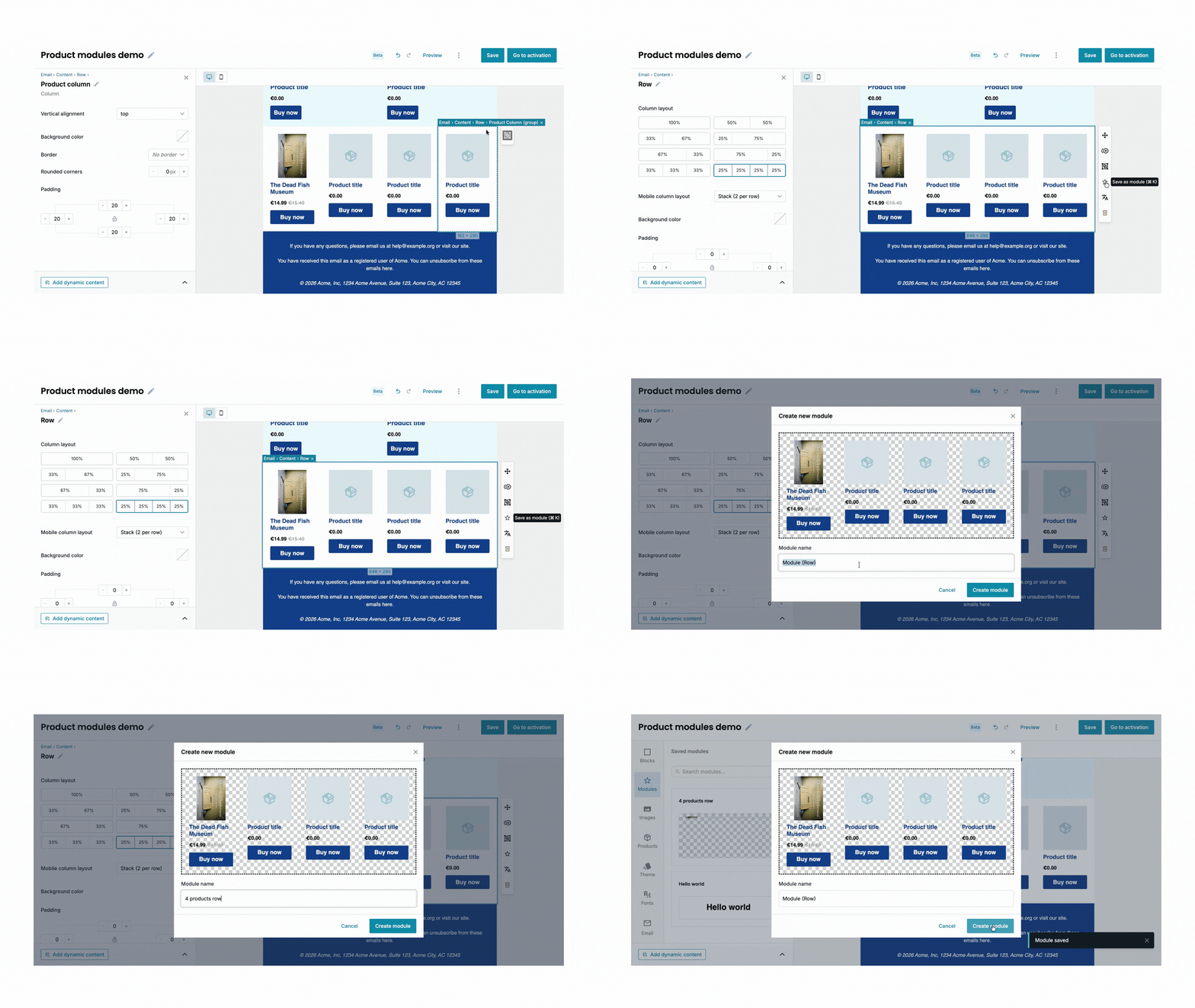
- Save your newly designed product as a new module to easily reuse it in all your future campaigns. Click on the product row and then the star icon next to it.
Tutorial auf Deutsch
Ab Ende Juni sind die Produktzeilen standardmäßig nicht mehr gesperrt.
Produktzeilen gestalten
Das Gestalten eigener Produktzeilen im Custobar-E-Mail-Editor ermöglicht es dir, einen einzigartigen Look für deine Marke zu erstellen und gleichzeitig die einfache „Drag-and-Drop“-Bedienung für deine täglichen Kampagnen beizubehalten.
Nachfolgend findest du eine Schritt-für-Schritt-Anleitung zur Erstellung und Anpassung von Produktzeilen.
Phase 1: Layout auswählen
Bevor du mit dem Gestalten beginnst, entscheide, wie viele Produkte du in einer einzelnen Zeile präsentieren möchtest.
- Öffne den E-Mail-Editor und navigiere zum Reiter Blöcke im linken Menü.
- Scrolle zum Bereich Produktzeilen.
- Ziehe eine Produktzeile (1, 2, 3 oder 4 Produkte) per Drag-and-Drop in deine E-Mail-Vorlage.
Phase 2: In den „Designer-Modus“ wechseln (Gruppierung aufheben)
Um das Design zu ändern – zum Beispiel den Preis über den Titel zu verschieben oder neue Produktdatenfelder hinzuzufügen – musst du die Produktzeile „entsperren“.
- Klicke auf die Produktzeile, die du gerade zur E-Mail hinzugefügt hast.
- Suche das Gruppieren/Gruppierung aufheben-Symbol (zwei überlappende Quadrate) in der oberen rechten Ecke des Blocks.
- Klicke darauf, um die Gruppierung aufzubheben.
Was hat sich geändert? Du befindest dich jetzt im „Designer-Modus“ eines einzelnen Produkts. Du siehst jedes verfügbare Datenfeld (wie Angebotspreise oder Markennamen), selbst wenn sie im Moment unübersichtlich oder „leer“ aussehen.
Phase 3: Inhalt anpassen
Nachdem die Produktzeile nun aus einzelnen Teilen besteht, kannst du diese individuell anpassen.
Blöcke neu anordnen: Ziehe Bild-, Text- oder Button-Komponenten, um deren Reihenfolge zu ändern.
Weitere Daten hinzufügen: Du kannst zusätzliche Textblöcke hineinziehen, um benutzerdefinierte Produktdatenfelder anzuzeigen.
Sichtbarkeit anpassen (Der „Preisschalter“): Du kannst Regeln festlegen, sodass bestimmte Elemente nur angezeigt werden, wenn die entsprechenden Daten vorhanden sind.
Beispielsweise sind bereits folgende Regeln für die Anzeige des Produktpreises eingerichtet:
- Beispiel: Der Preis mit einem „Angebotspreis“ wird nur angezeigt, wenn das Produkt einen Angebotspreis hat (product.sale_price ist gesetzt).
- Beispiel: Der Preis mit einem „Standardpreis“ wird nur angezeigt, wenn das Produkt keinen Angebotspreis hat (product.sale_price ist NICHT gesetzt).
Phase 4: Design für den täglichen Gebrauch sperren
Sobald dein Design perfekt ist, solltest du es wieder in den gruppierten Zustand „sperren“, um die Ausrichtung für die zukünftige Verwendung zu schützen.
1. Klicke erneut auf das Gruppieren-Symbol, um zum Gruppierten Zustand zurückzukehren.
2. Vorschau überprüfen: In diesem Zustand siehst du eine „What You See Is What You Get“-Ansicht. Es werden nur die spezifischen Produktdetails angezeigt, wie sie in der finalen E-Mail erscheinen.
3. Mit echten Produkten testen: Ziehe ein Produkt aus deinem Reiter „Produkte“ in den Platzhalter, um sicherzustellen, dass die Daten korrekt ausgefüllt werden.