
Here is how to view and analyse your campaign statistics in straightforward steps.
Step 1: Navigate to the Campaigns View
In the top navigation menu, click on Campaigns to open the main campaign overview page.

Step 2: Select a Campaign
Locate and click on the specific campaign you wish to review from the list of completed or active campaigns.
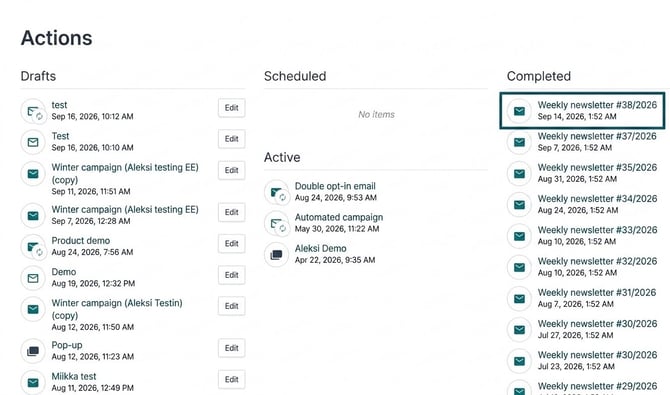
Step 3: View the statistics of a single campaign
Once selected, the campaign results view will display key metrics and options at a glance.
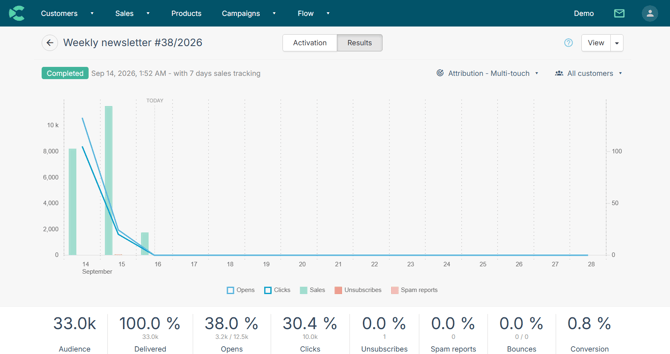
Selecting the Attribution Model
At the top-right corner of the statistics dashboard, choose your preferred attribution model. Multi-touch attribution captures full customer journey touchpoints across campaigns, while last-click provides single-source, non-duplicated revenue attribution.
- Multi-touch counts every sale a recipient made within tracking days of receiving this campaign. Sales can count for several campaigns.
- NEW! Last-click counts a sale within tracking days only if this was the last campaign the customer clicked. Each sale counts once.


Understanding Key Performance Indicators (KPIs)
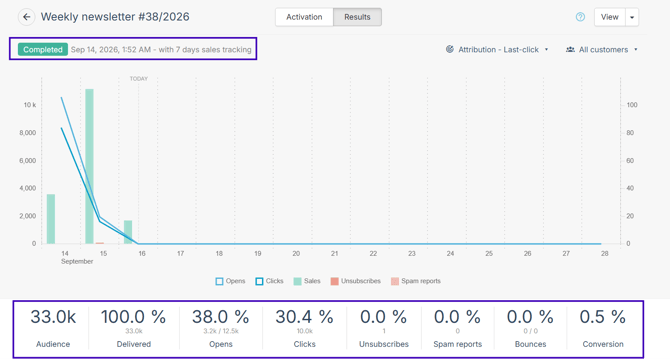
The header area displays campaign status, activation date, and sales tracking period. Use the breakdown table below to understand each metric:
|
KPI |
Description |
|
Audience |
The total number of recipients in the campaign. |
|
Delivered |
Total number of emails, sms or push messages delivered based on campaign type. |
|
Opens |
How many recipients opened the campaign. To track opens, Custobar relies on loading the images inside the content. Because of how certain email clients handle loading those images, this may return some "clicks" in rare instances. |
|
Clicks |
How many recipients interacted with the campaign, e.g., by clicking an item on the message. Please note that this is a count of Unique clicks. This means machine clicks and false positives from loading images will not have a big impact on this metric. |
|
Unsubscribes |
How many recipients unsubscribed through this campaign. |
|
Bounces |
Amount of blocked messages that did not reach the recipient in this sending. This value includes errors such as the recipient's mailbox is full, or the email address is not recognized by the receiving mail service. |
|
Conversion |
Conversion - % of this campaign. How a sale is attributed depends on the selected attribution model: Note: The following rules apply depending on the chosen attribution model: Multi-touch attribution: The sale doesn't need to be linked to a specific campaign for it to be counted in the Conversion-% of a campaign. Any sale made after reacting to an email during the tracking period will be included in the Conversion-% of a campaign. This means a single sale can be counted towards multiple campaigns Conversion-% as long as there has been a reaction to the emails and sale is made during the tracking periods. Last-click attribution: A sale is attributed exclusively to the last campaign the customer clicked prior to purchasing. Each sale is counted exactly once and is not shared across multiple campaigns. |
Audience Size & Performance Metrics Note
The audience will be adjusted at the time of sending to filter out invalid or blocked email addresses, this means the actual audience at the time of sending might be slightly smaller than the segment defined in the customer search section. The Open, Click, Unsubscribe, Bounce and Conversion rates are all calculated based on the Delivered count, not the Audience.
Step 4: Explore detailed Sales & Channel Insights
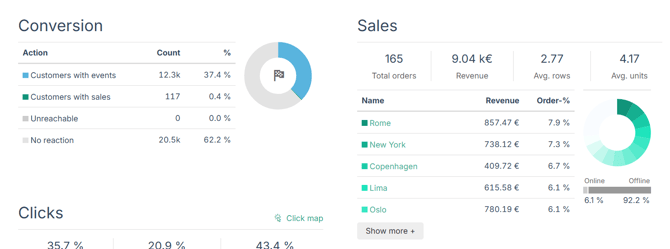
Scroll down the statistics page to analyze deeper performance metrics across sales channels and stores:
- Which store was the one that brought in the most sales
- The total revenue for the campaign
- How big % of the sales came from online sales and offline sales
Step 5: Analyze engagement and product performance
Further down the page, you can analyze specific click activities and sold items.
Clicks and click map
- ‘Click map’ for the clicks on the different links and buttons in the campaign. You can see an overview of the click counts per url. Those will be all click Events we received from the email dispatcher, so the count might include machine clicks, false-positives from loading images, more than one click per url if the recipient clicked the link more than once, etc. As such, it is not abnormal to see more clicks than for the unique click count above which is capped at counting "one click per recipient".
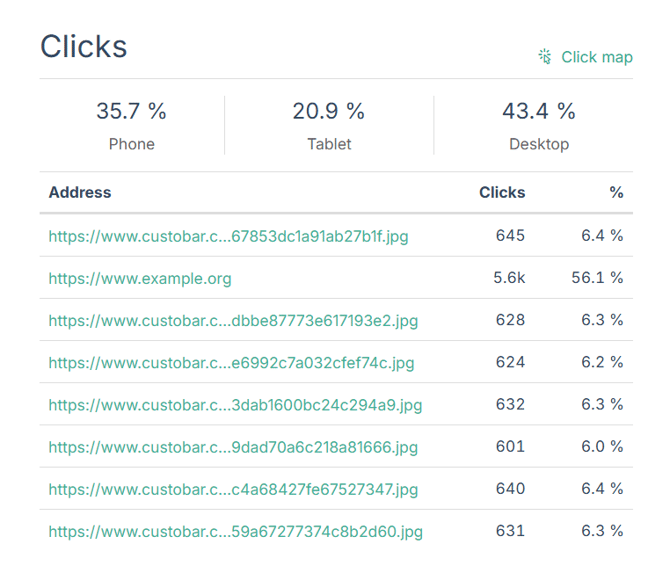
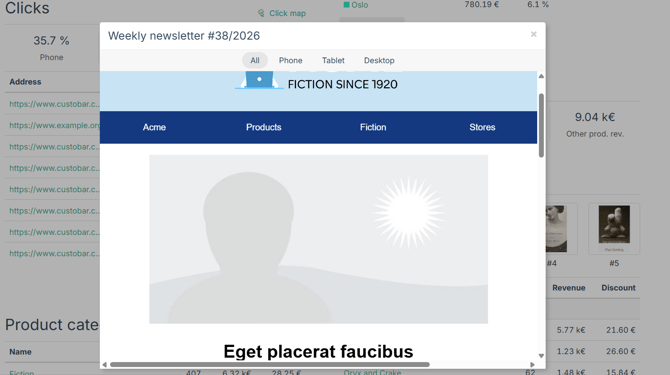
By clicking the detailed view in the top right corner you can see the breakdown in the campaign content directly. You can further filter the detailed click statistics by device types such as Desktop, Mobile or Tablets.
Products
Products that were sold through the campaign. If a product was featured in the content of the campaign using a product module and the drag-and-drop logic, it will be listed under "Campaign products" all other products bought will be listed under "Other products". If product recommendations add-on is enabled, a third category "Recommended products" will be included.
The "Campaign products" will never include recommended products as they are the dragged-and-dropped regular products in your campaign, those you manually picked and featured. The "Recommended products" are products that were shown through the product recommendations feature and were purchased by the recipient who saw them in their personalized content. The "Other products" are any other product sold during the tracking period by a recipient who took part in the campaign.
