
Video tutorial:
External Campaign Actions are a great tool to export audiences as downloadable lists. It can be used to retrieve some data or to create contact lists, for example for traditional direct mail.

The fields made available by the external campaigns are user configurable. Please refer to our guide on external campaign configuration to choose which data will be retrieved
This is the step-by-step guide to create an external campaign.
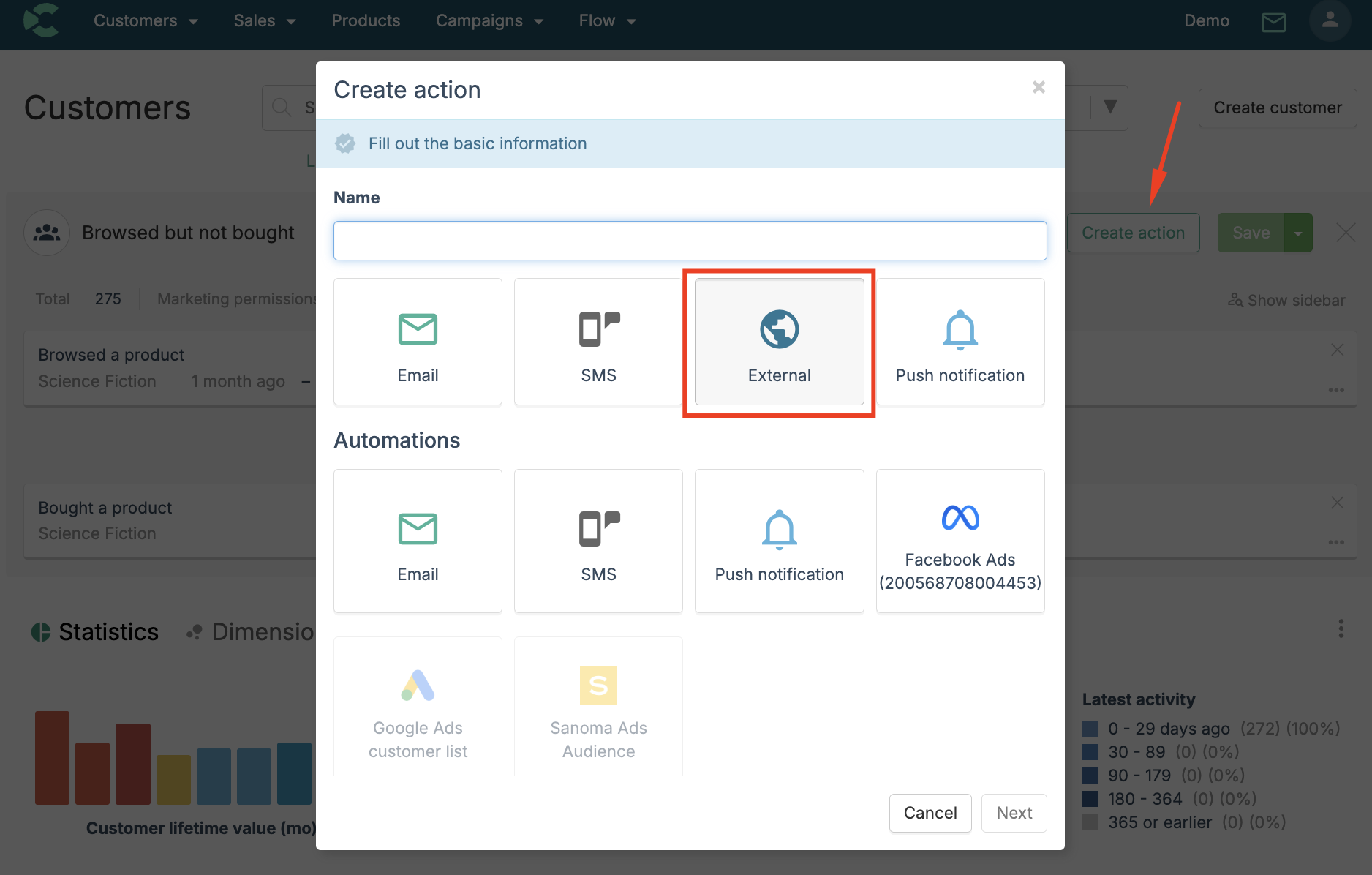
- Define an audience whoose data you would like to export, click "Create action", and choose "External" as the type of the campaign:
2. Place the camapign to designated folder, and proceed further: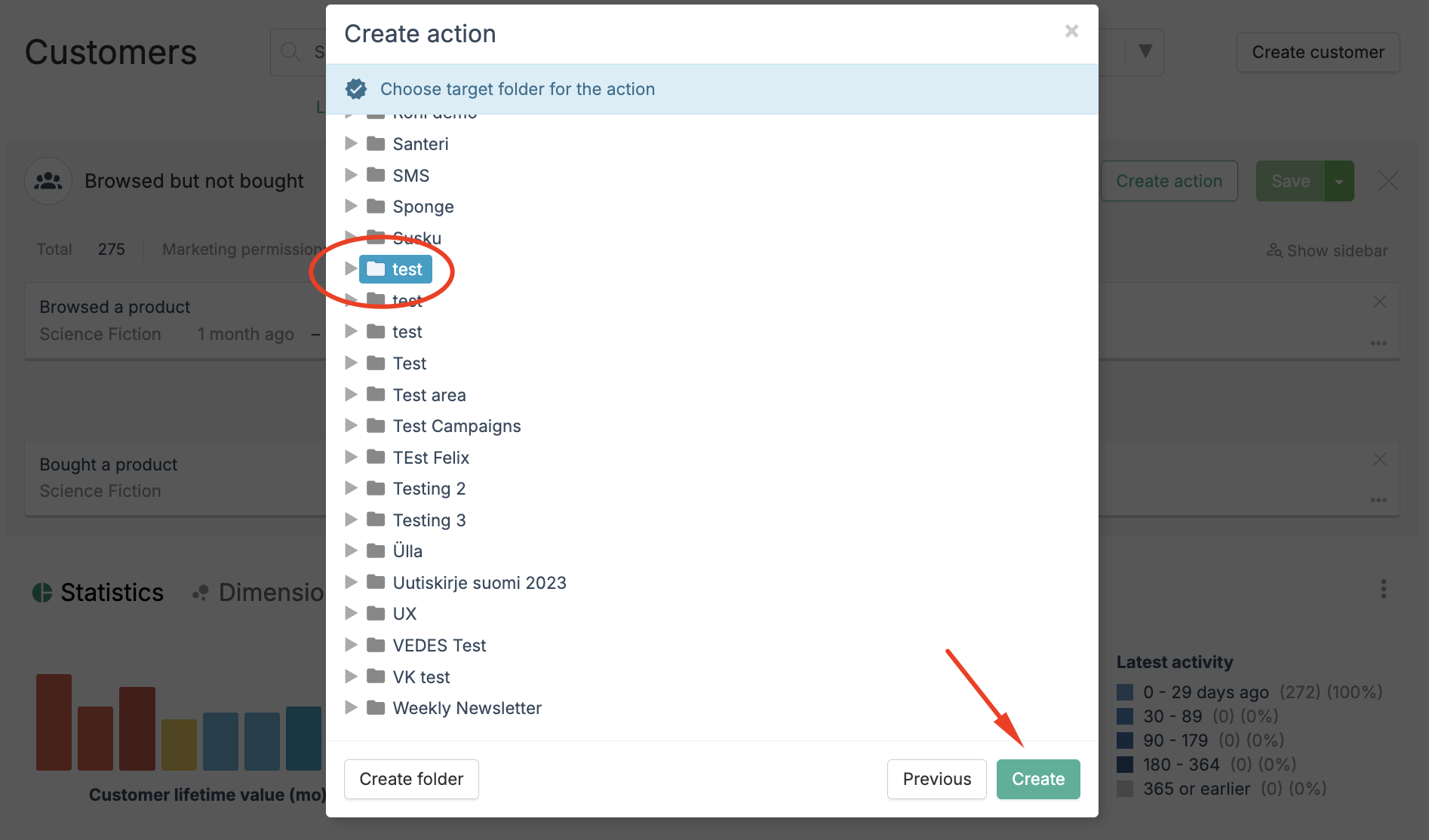
Now, at the activation tab of the campaign: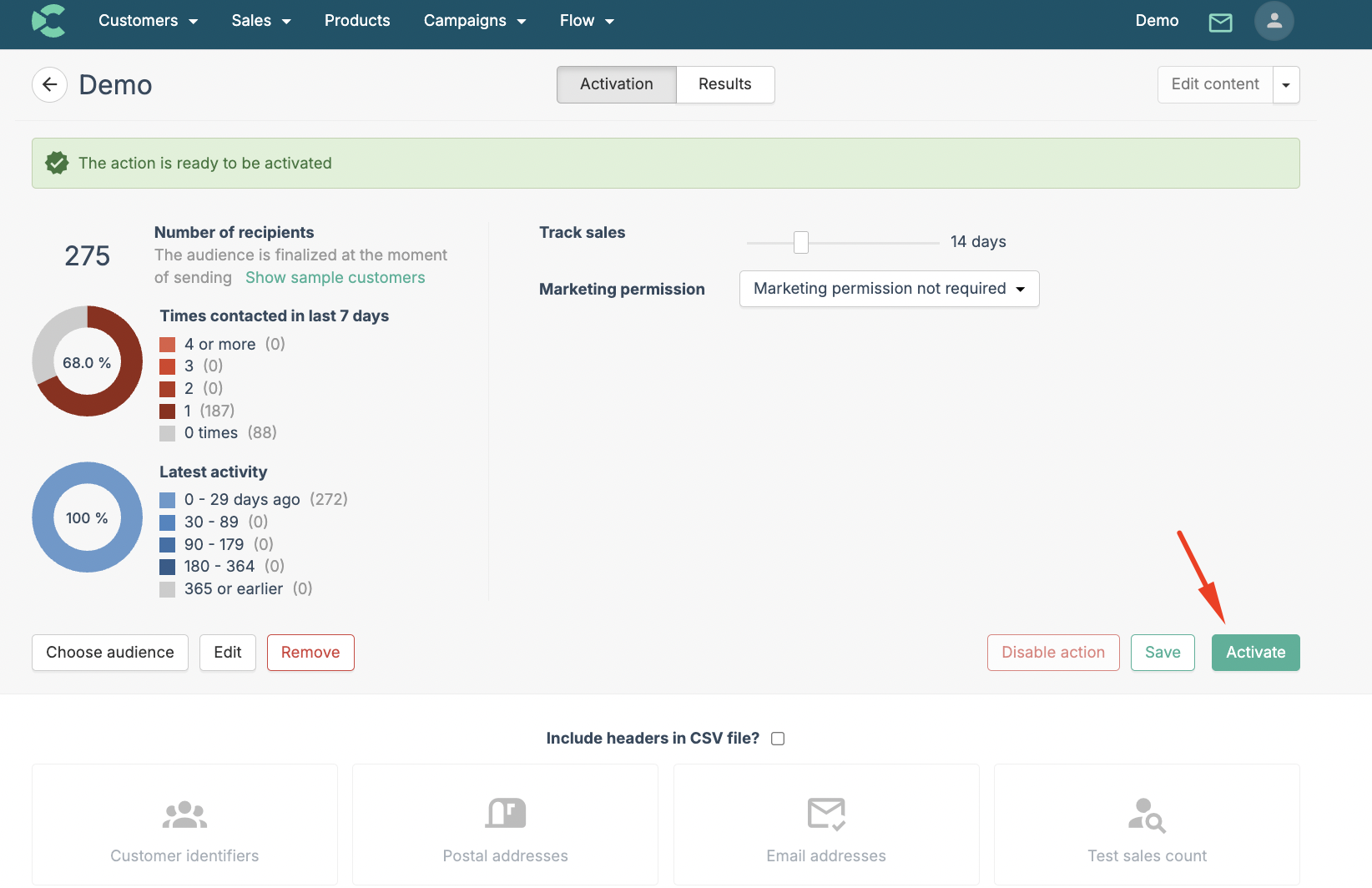
you will be able to define the tracking period of your campaign. This allows Custobar to allocate any online and offline sales happening during the tracking period to the members of the list you retrieved and therefore give you a sense of the impact your list usage may have had on conversions.
Once the campaign is activated, the lists will be generated allowing you to start the download by clicking one of the buttons visible at the bottom of the activation tab. You will also be presented with the option to include the column headers should you need them in the exported file.
Each button is tied to a specific configuration, allowing you to select the button matching the fields assortment best matching your needs. Again, follow our configuration guide to find out how to add more buttons there.
Thank you for reading this guide and please contact our Customer support if you have any questions.