
Follow the steps below to connect Custobar - Custobar Data and Marketing Automation with your Shopware 6 store.
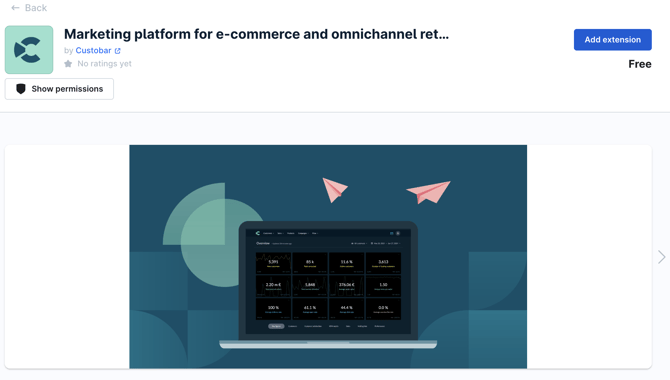
1. Login to your Shopware 6 store and go to Extensions - Store and search for "Custobar".
2. Click on Add Extension.
3. In Custobar, go to Integrations → Available Integrations and click Install on Shopware 6 — this provides a token:
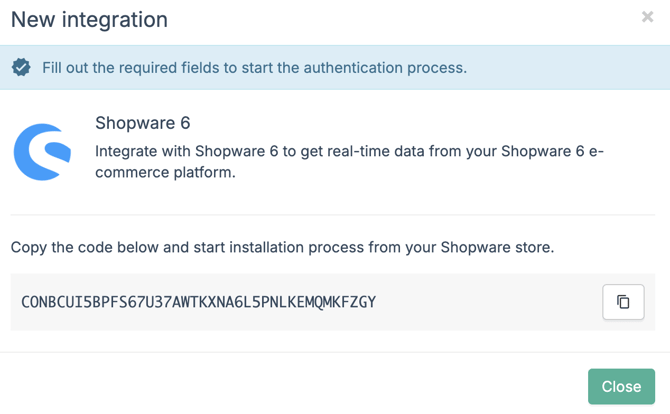
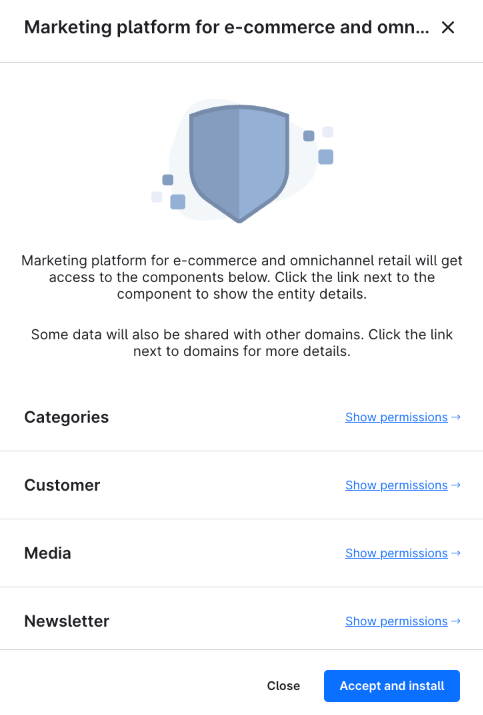
4. Go back to you Shopware store. Add the token in Shopware where the installation asks for it, then activate the integration. You will also be shown what permissions the Custobar app gets. Click Accept and install to finalise the installation.
6. The integration is now active. Next, you need to define what data you want to bring into Custobar. Click Open Extension then View Integration:
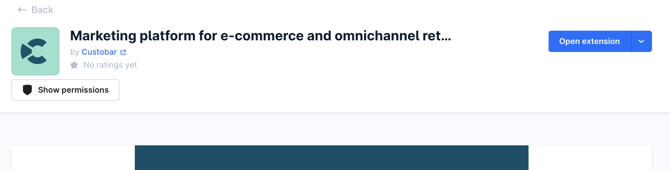
This takes you to the Custobar settings where you can define what data to bring in from Shopware into Custobar:
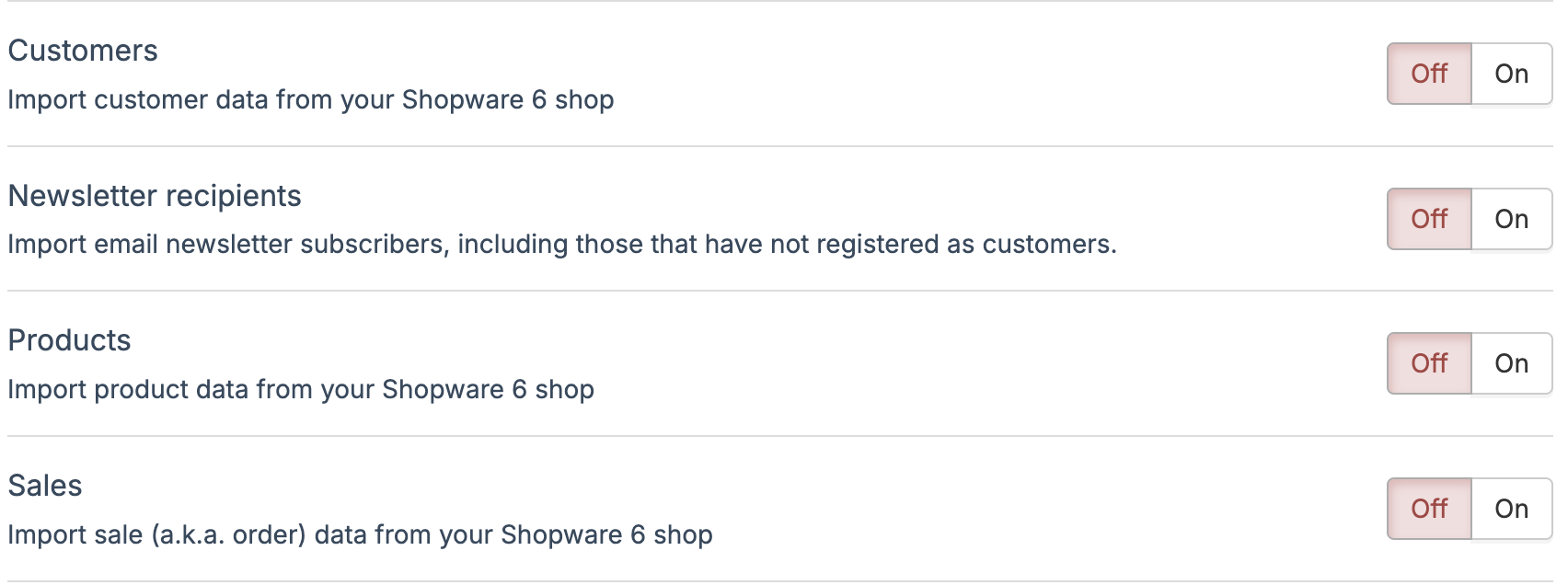
7. After you have activated the data endpoints you want, you can return to your Shopware store and go to Extensions → My Extensions, click Configure on Custobar’s extension.
8. Activate the customer tracking by Custobar:
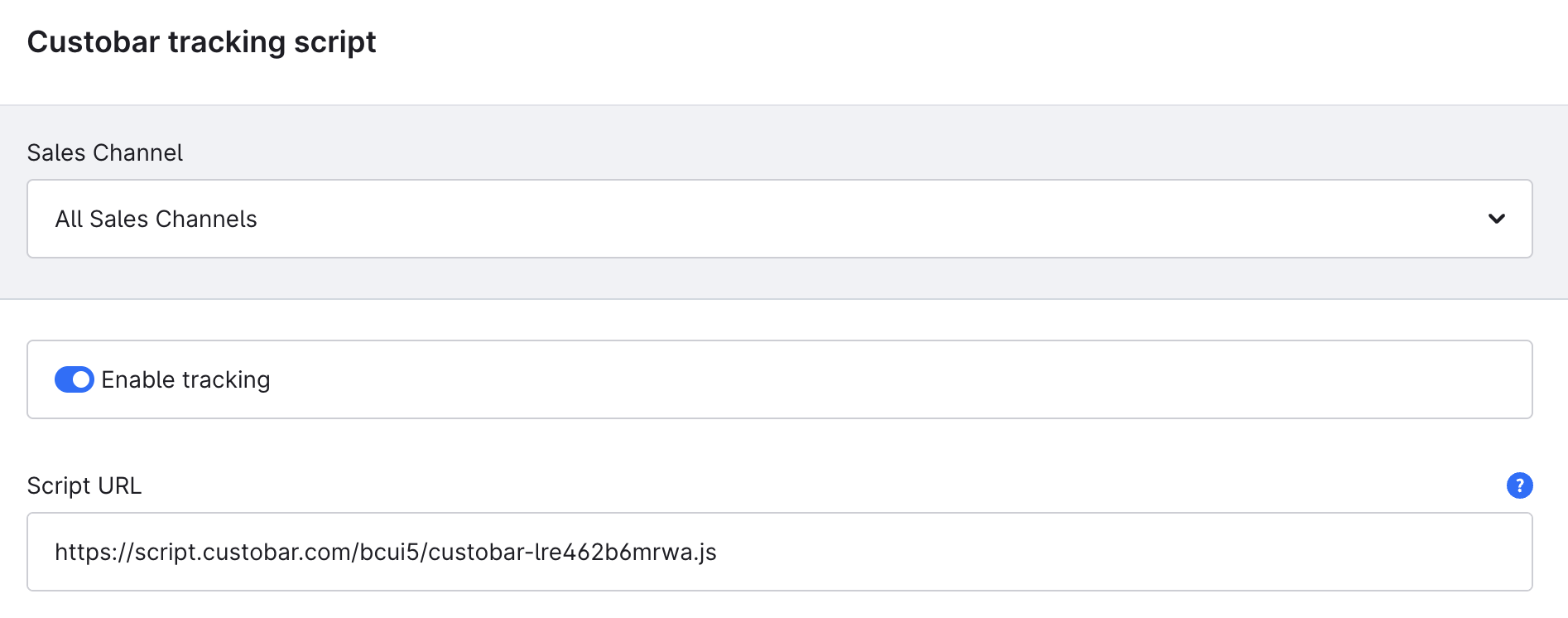
✓ All set! Your Custobar–Shopware 6 integration is fully configured and ready to use.