
Would you like to know, for example, which products your identified customers are browsing? Follow these instructions to start tracking your customers' browsing activity in your Shopware 6 store and to install the Custobar tracking script.

First, make sure you have connected your Shopware 6 store to Custobar.
Settings within Shopware
- Login to your Shopware 6 store. Go to Extensions -> Store -> Search for “Custobar”, click “Custobar for Shopware 6” and click “Add extension”.

- Accept the terms, conditions and permissions and click “Add extension for free”.
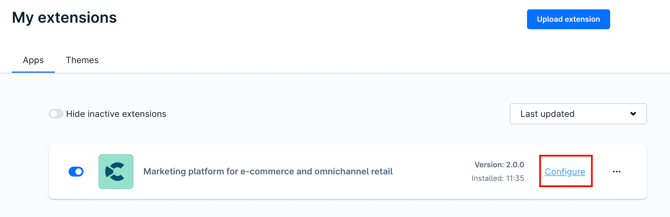
- Go to My extensions, find “Custobar for Shopware 6” and click “Install extension”.

- Click "Configure".
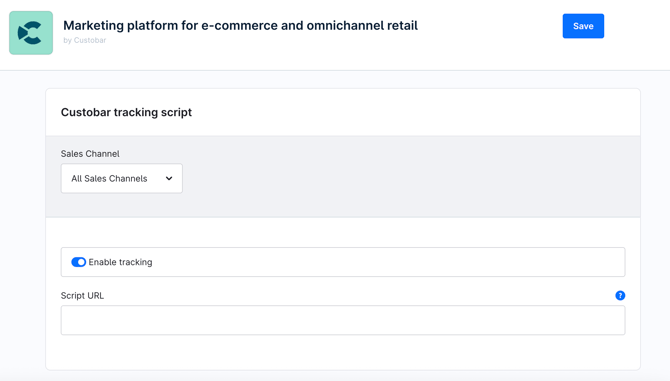
- Select the sales channels you want to track.
- Toggle on “Enable tracking” and Save.
- Keep this window open and move into Custobar.
Settings within Custobar
- Login to your Custobar app. Go to Campaigns -> Sites.
- You should now see your Shopware store on the list of Tracked sites.

- Click on the "Installation instructions" and copy the script URL given to you in the pop-up window.

- Keep this window open and move back into Shopware.
Settings within Shopware
- Paste the script URL you copied from Custobar into the Script URL field in Shopware.
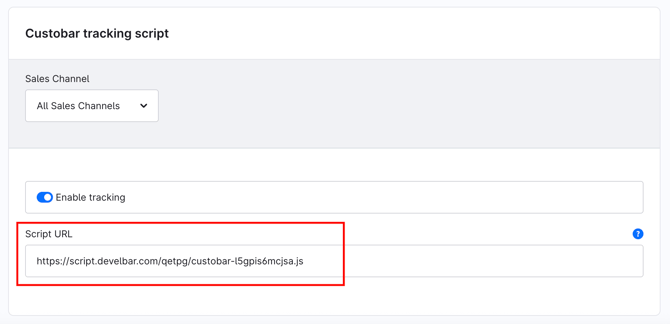
- Save.
Finding the tracking events in Custobar
- Go back to Custobar.
- You can find the site tracking events in Custobar from Campaigns -> Sites -> Your Shopware site -> View incoming data.

Please notice that browsing events will start to appear in your Custobar environment only after the product data has synched from Shopware 6 into Custobar, and an identified customer browses those products.