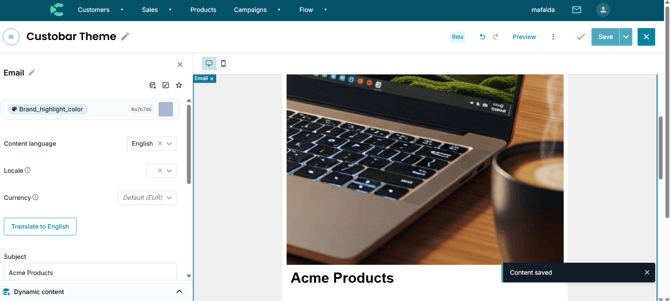
Key benefits of the editing images within the Content Editor
- No external tools needed: Crop and adjust your images instantly and see how they visually fit your campaign.
- Faster loading times: The system automatically compresses and optimises the file size of your edited image behind the scenes.
- Perfect layout tits: Your images will automatically scale to fit their designated container, ensuring clean rendering across all mobile and desktop devices.
Step-by-Step: How to edit an image
- Open any email, banner, or popup campaign in the content editor and insert an image block. Select an image and add it.
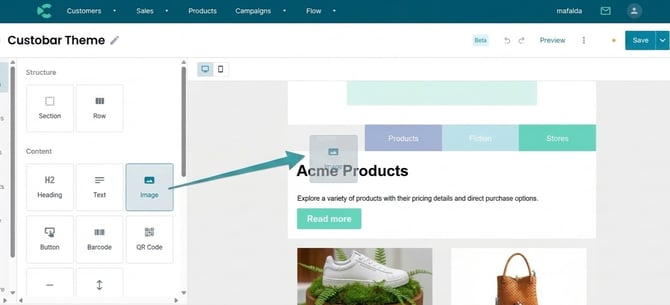
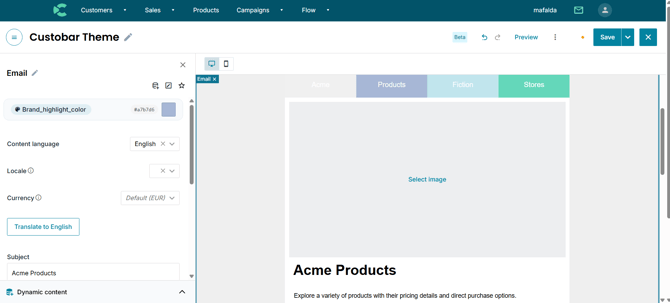
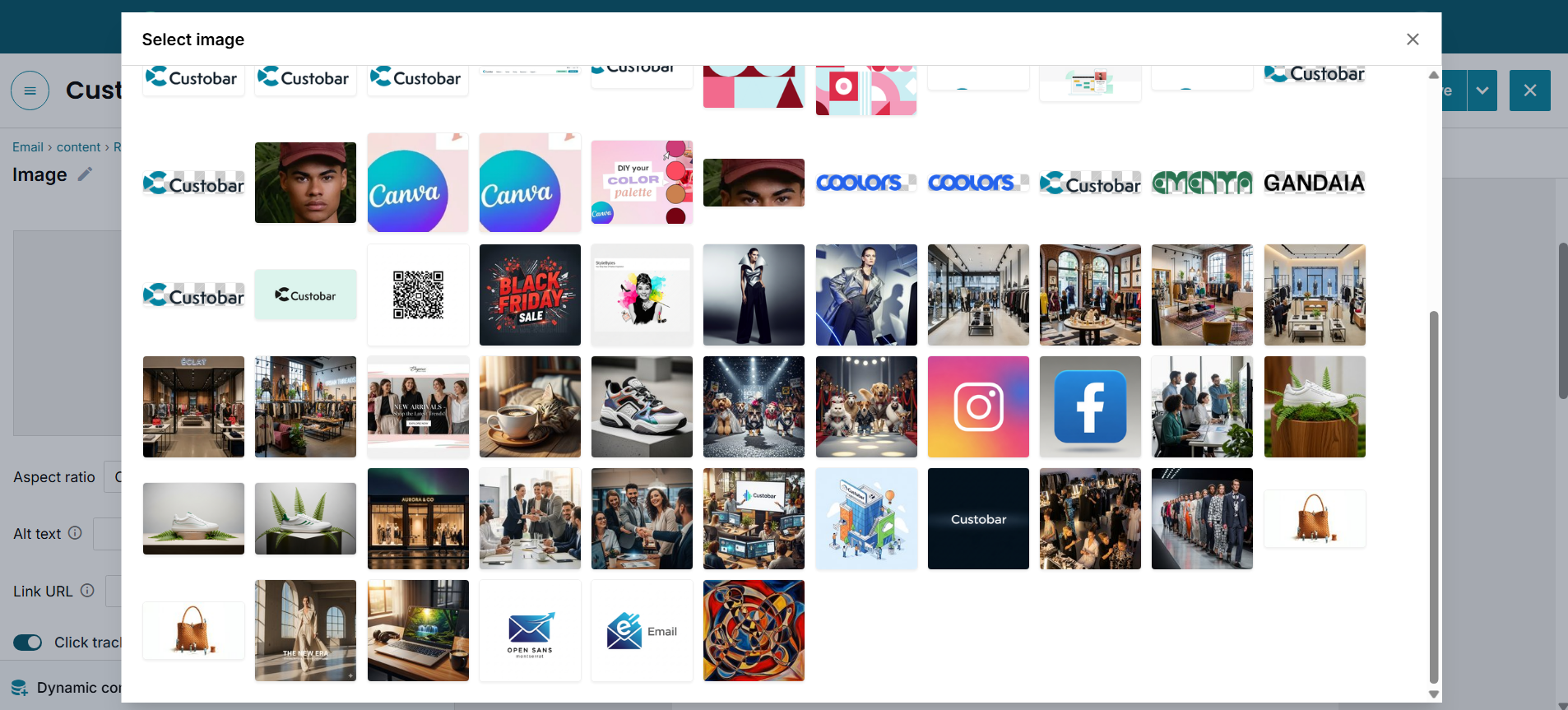
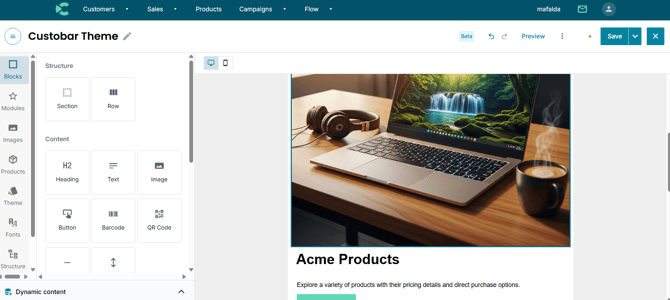
2. Simply double-click the image to modify. This will instantly launch the image editing interface.
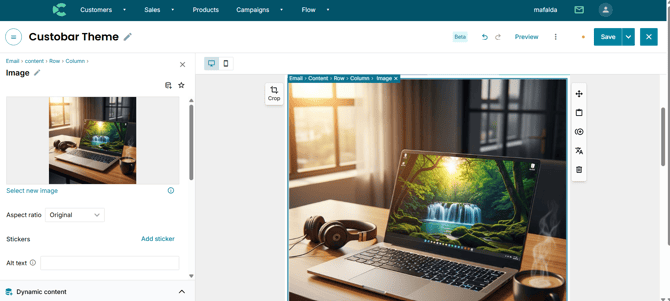
3. Adjust and crop. Use the built-in controls to get the perfect fit:
-
- Crop: Match the image to the exact aspect ratio of your template design.
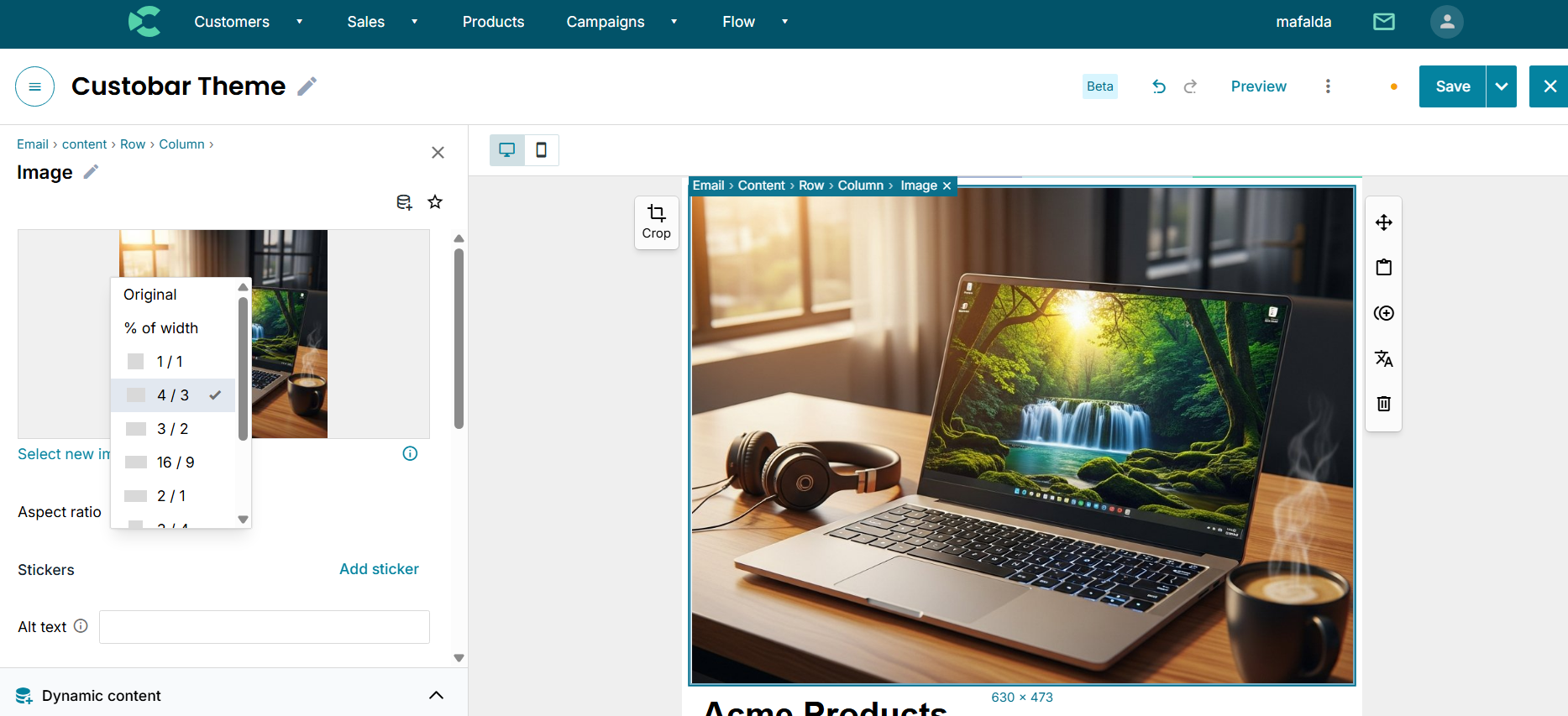
- Zoom: Scale the image in or out to focus on a specific area.
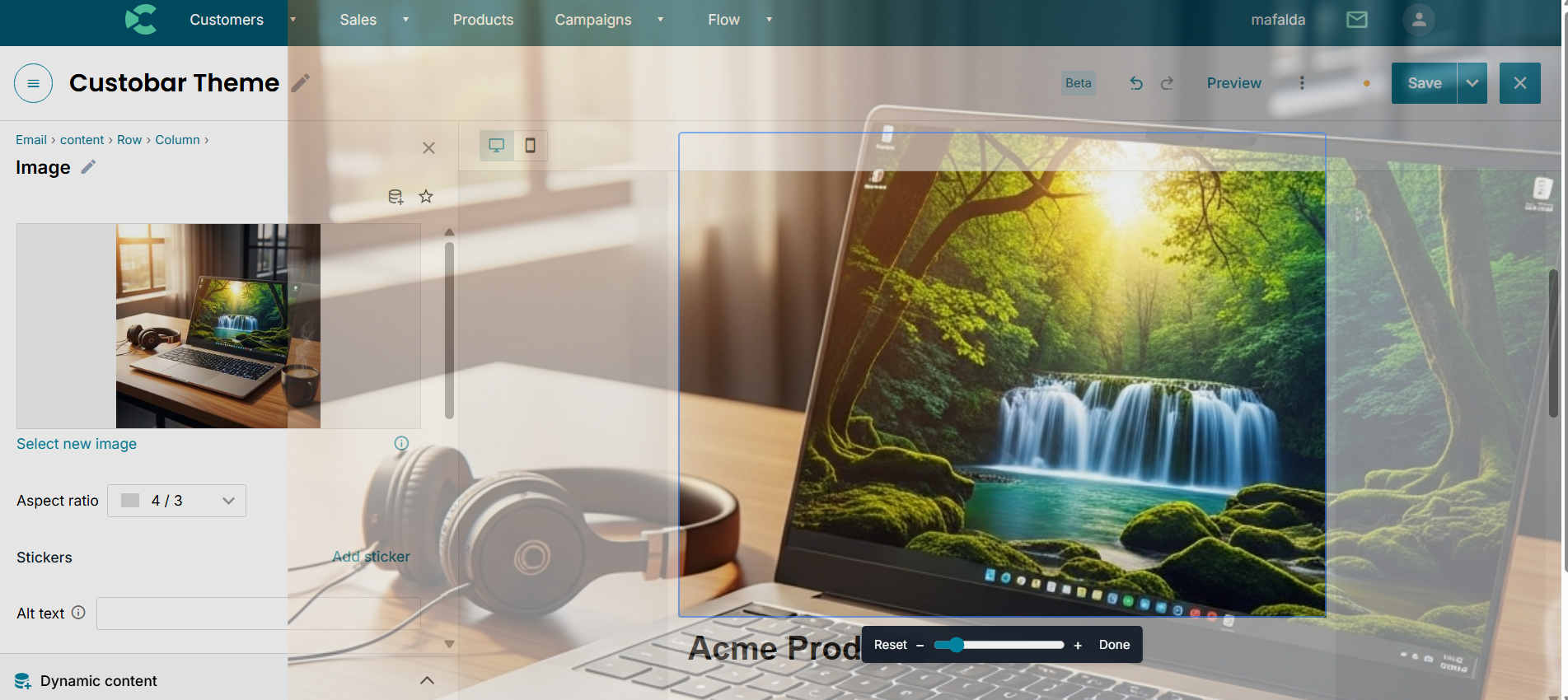
- Pan: Click and drag the image to reposition it within the frame.
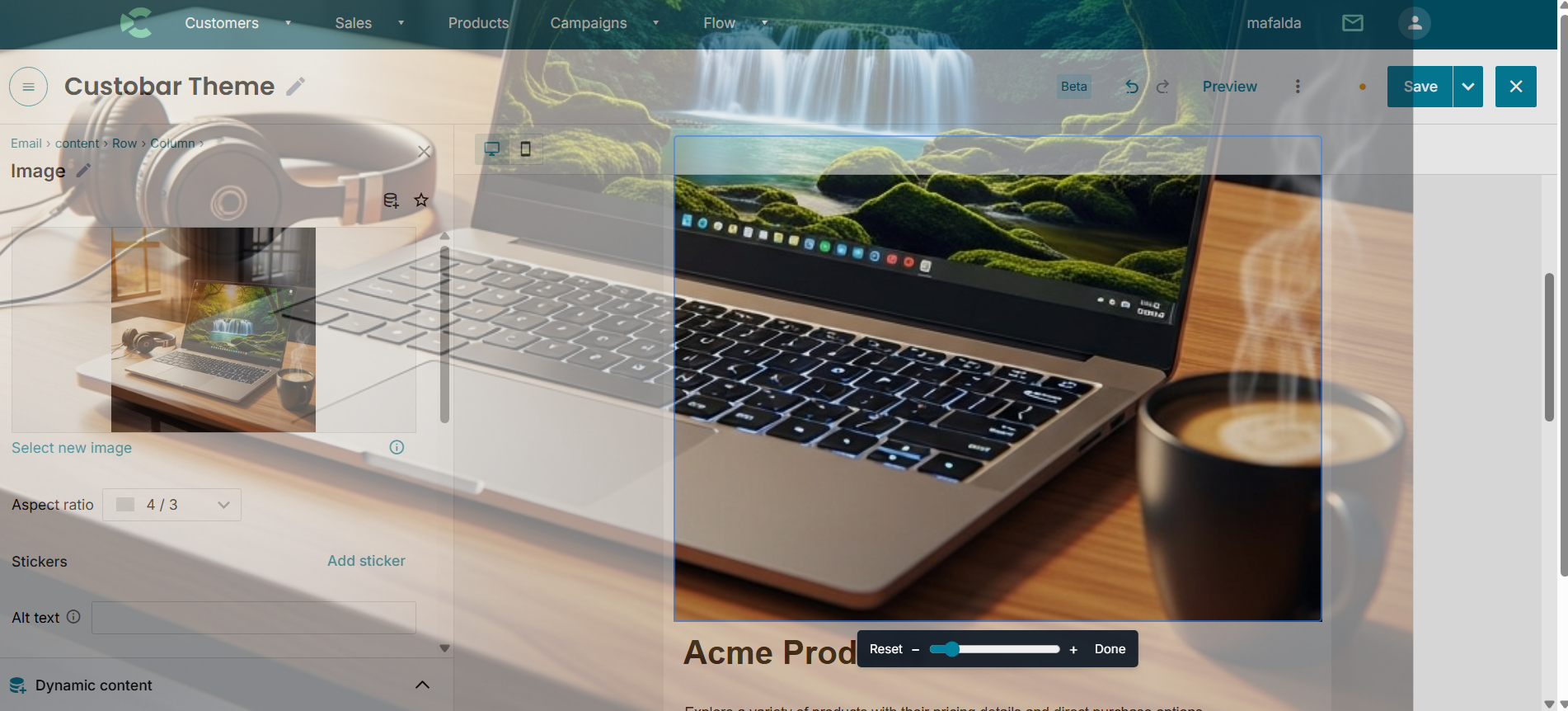
4. Click “Done” to save your changes.