
Step #1. Export your campaign content token
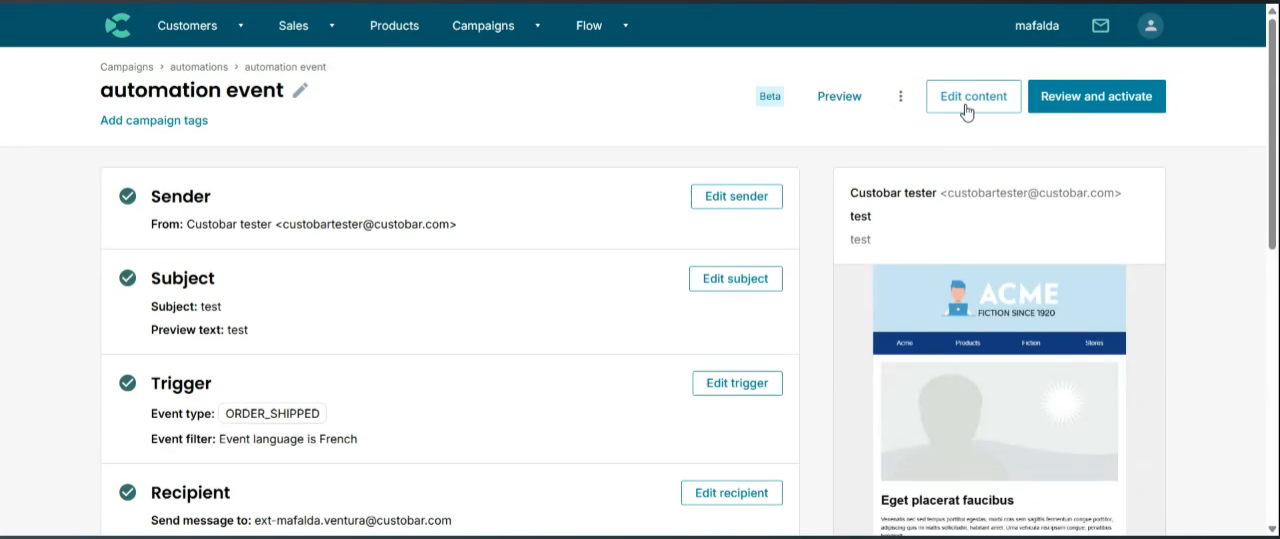
Open the campaign or automation in Custobar containing the email layout you wish to copy. Click on Edit content to open the email editor.
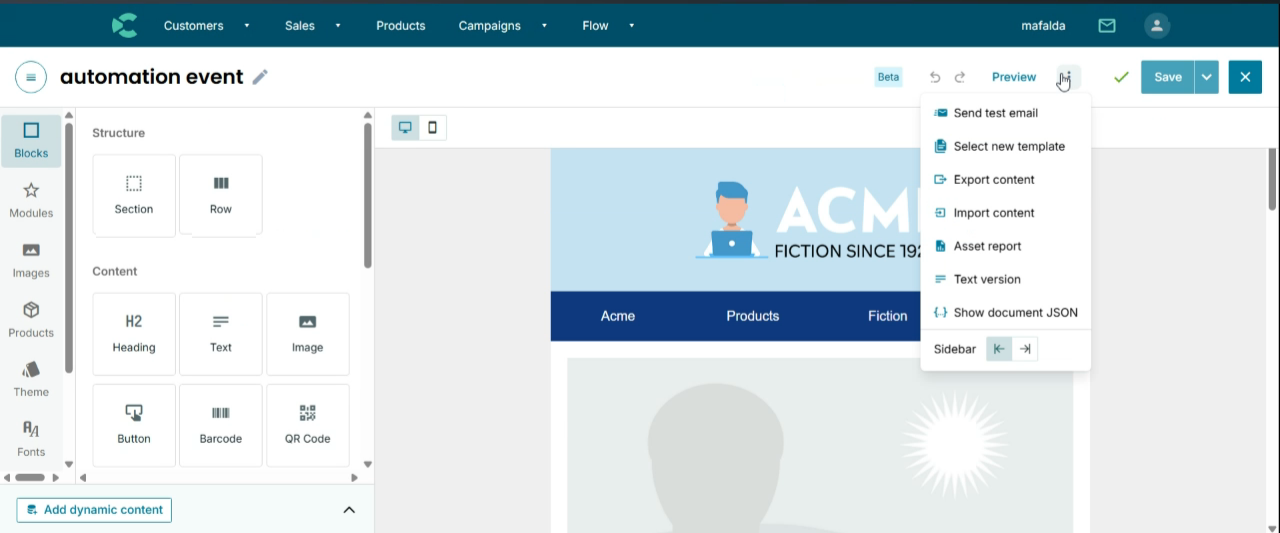
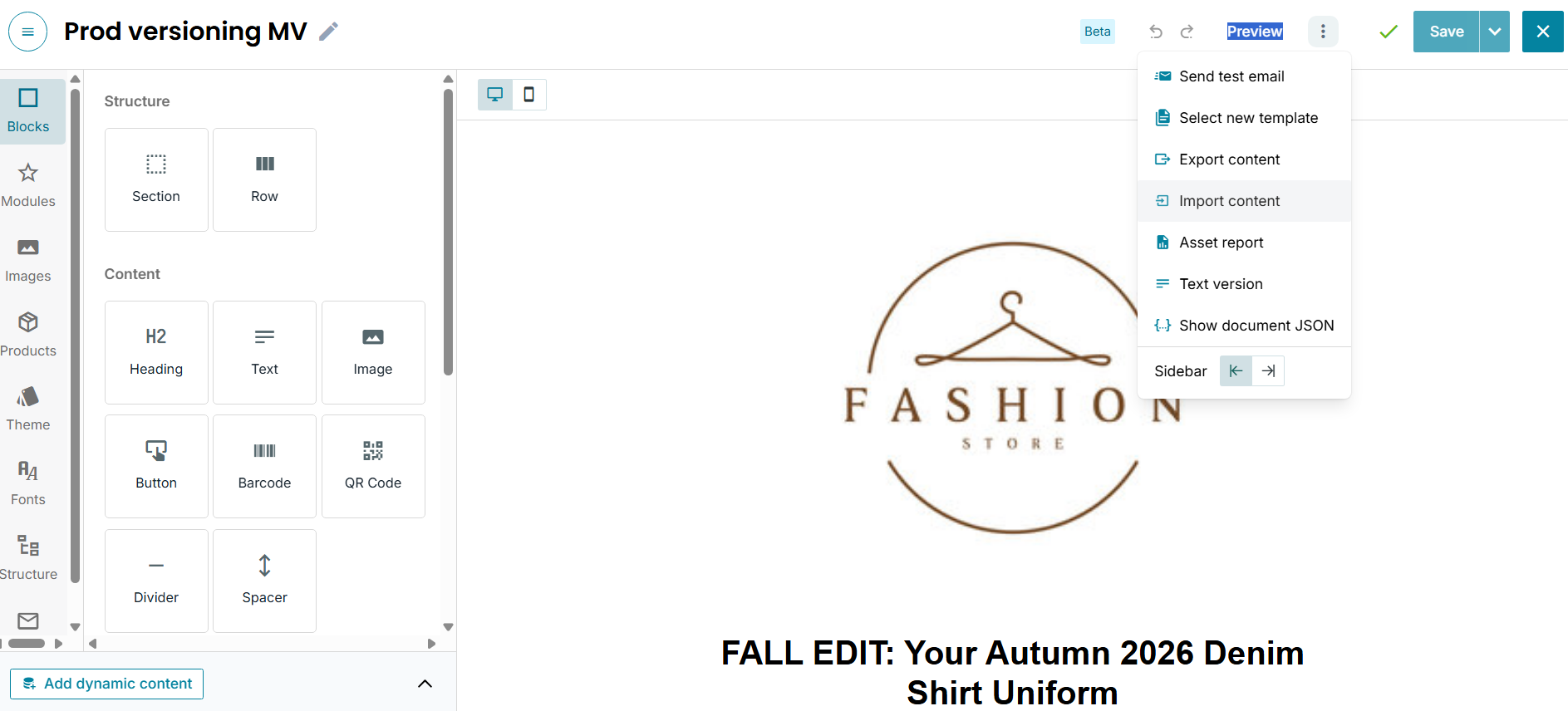
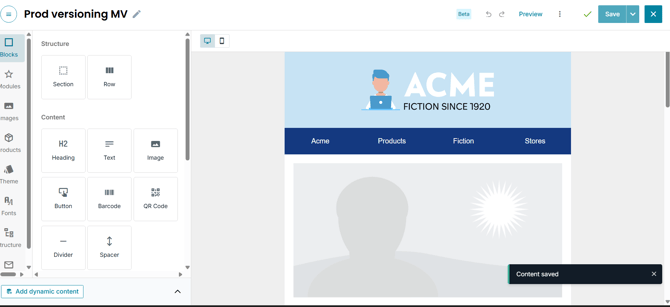
In the top menu, click the three dots icon next to Preview and select Export content from the drop-down menu.
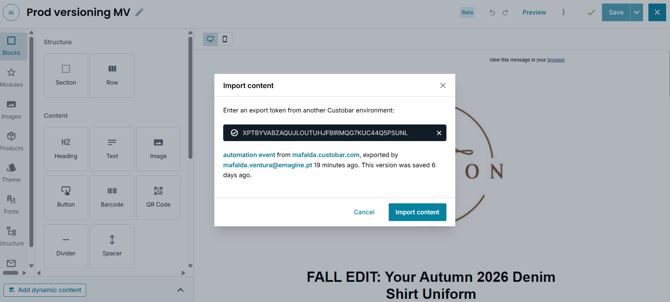
A modal window will appear containing a unique content token. 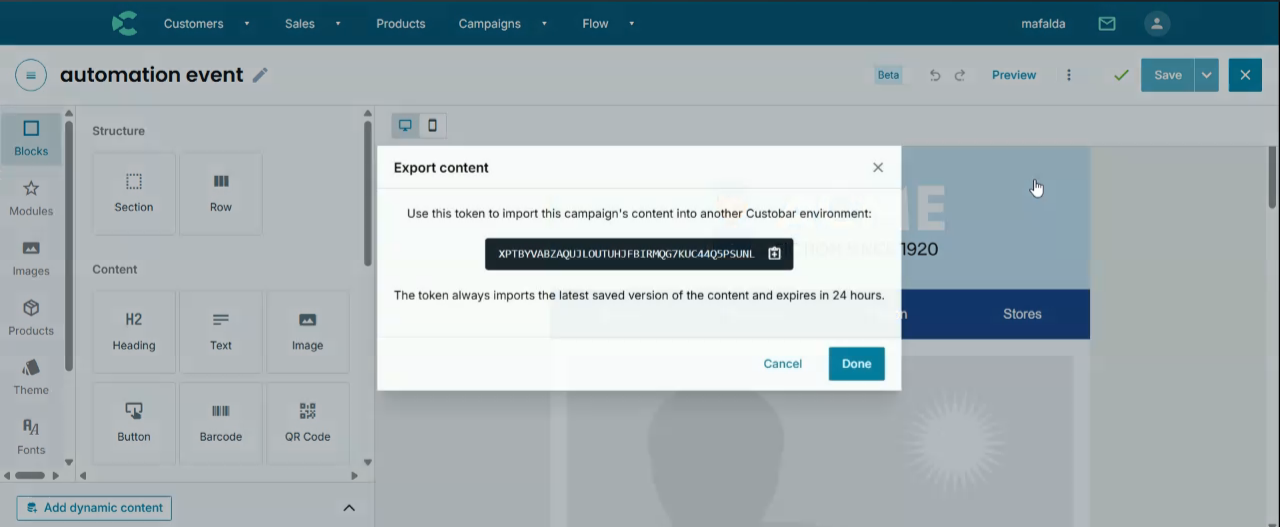
Click the copy icon to copy this token to your clipboard.
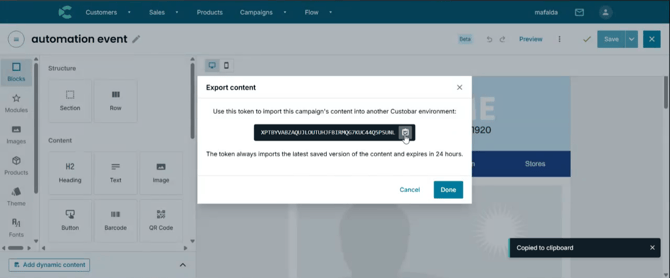
Note that this token imports the latest saved version of the content and remains active for 24 hours.
Step #2. Navigate to your target campaign or automation
Switch to the Custobar environment where you want to apply the exported design. From the Browse campaigns page, open your desired draft campaign or automation—such as an event-based automation event—and click Edit content to launch the email editor.
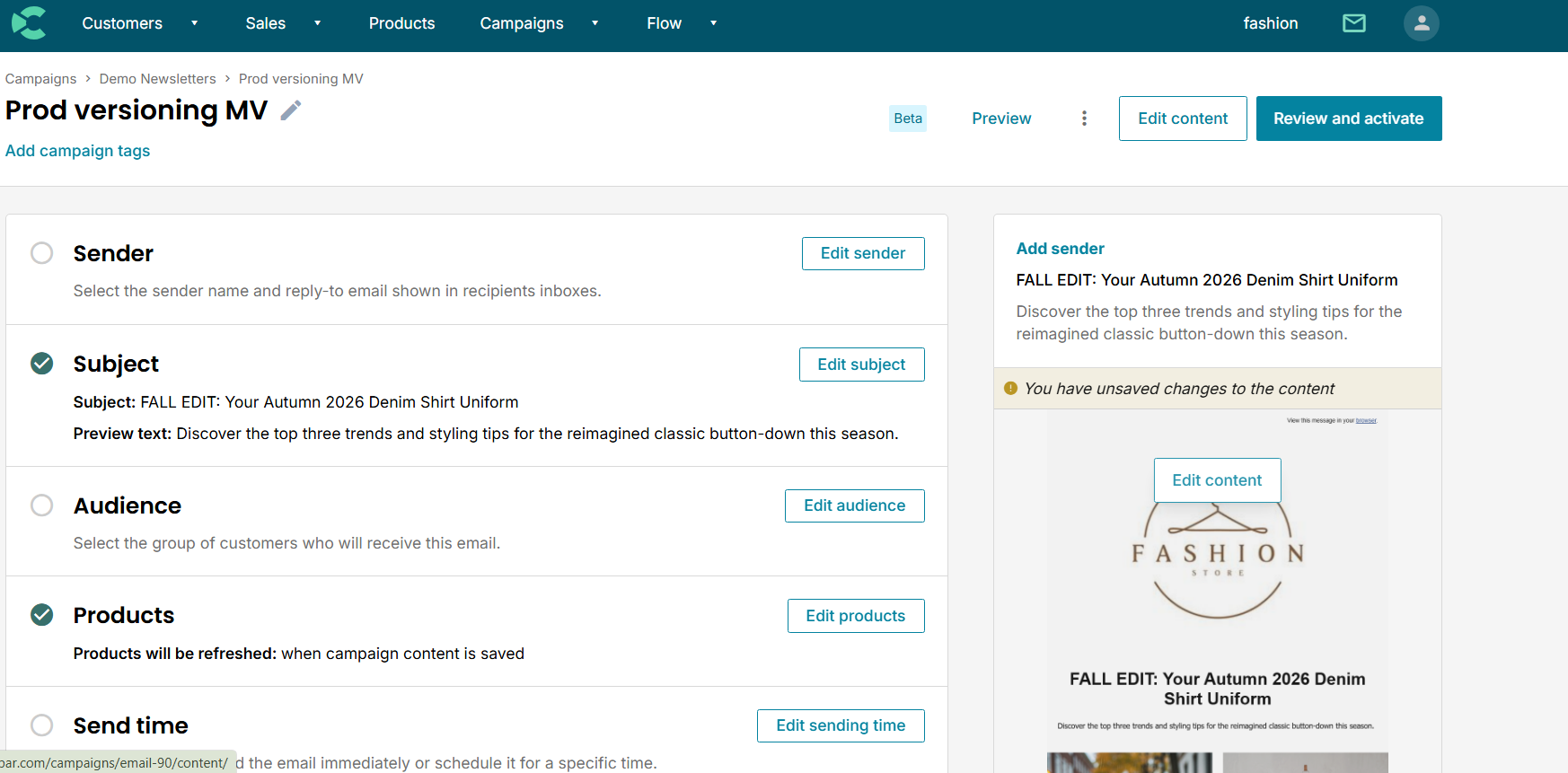
Step #3. Import the content into the new editor
Inside the target email editor, click the three dots icon in the top navigation bar and select Import content.
Paste the copied token into the modal field and confirm the import.
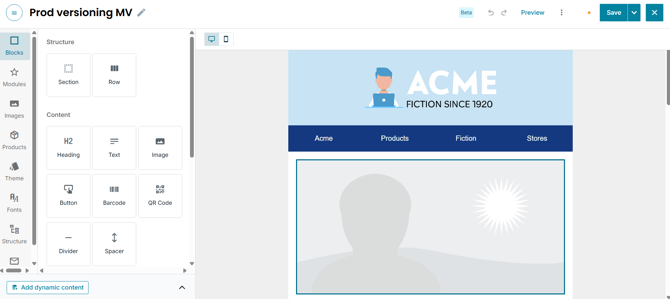
The editor will immediately populate with the complete layout, modules, and formatting from your original campaign. Make any final copy or product updates, then save your changes.
Be sure to use content export and import features to save valuable hours when setting up email layouts across Custobar environments.