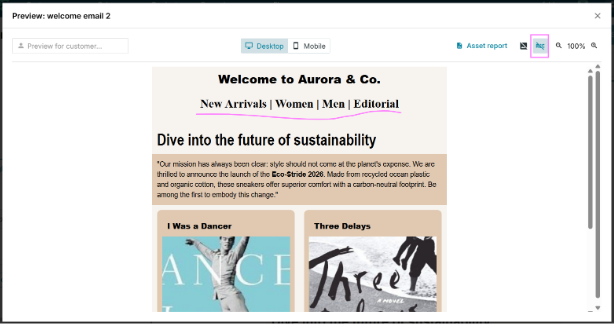
Custobar includes a preview feature that lets you instantly test your fallback fonts before hitting send.
Designing emails with custom typography adds a brilliant, polished look, but many popular email clients, such as older versions of Microsoft Outlook, do not support custom web fonts. Without testing, your email layout can break when standard system fonts take over, leading to awkward formatting for a large portion of your audience.
Here’s how to preview your emails without custom fonts in three quick steps.
Step #1. Open your campaign in the Custobar email editor
Navigate to your email campaign draft and launch the drag-and-drop editor. Ensure you have added your preferred custom web fonts to your layout text elements as usual.
Step #2. Switch to the email preview mode
Click the Preview button in the editor's top navigation bar. This opens the live rendering view, allowing you to inspect how your design displays on both desktop and mobile viewports.
Step #3. Toggle off custom fonts to display fallback text
Locate the font preview toggle switch in the preview settings bar. Set the toggle on to hide the added font and show the fallback font instead. Review your layout thoroughly to ensure that line wraps, button alignments, and text hierarchy remain visually appealing and consistent with standard system typography. Set the toggle off when you wish to display the added custom font again.
Added font:
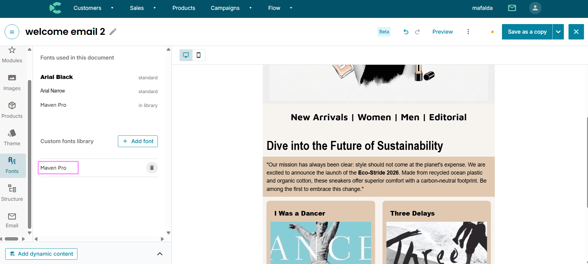
Toggle off: the added font is shown
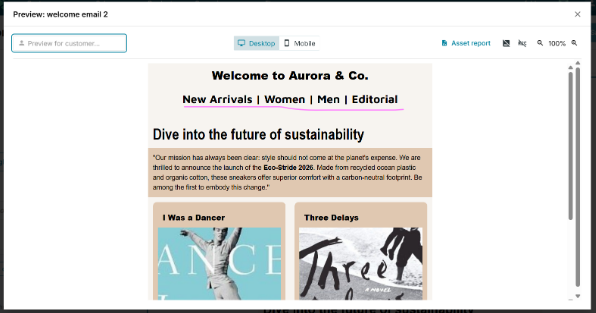
Toggle on: the fallback font is shown