-
Navigate to your Custobar app.
-
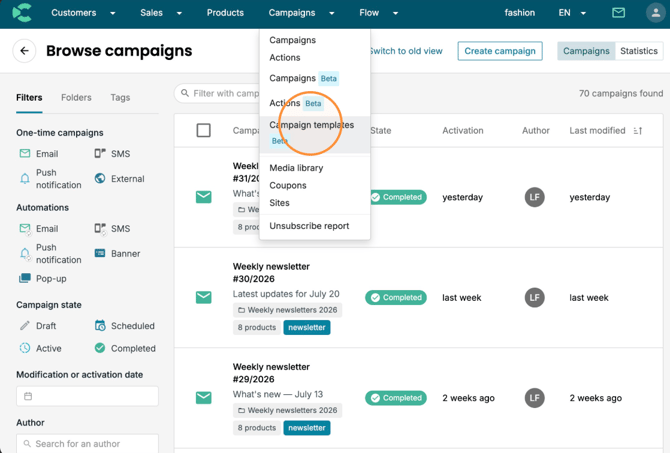
Click "Campaigns" and then "Campaign templates Beta".
-
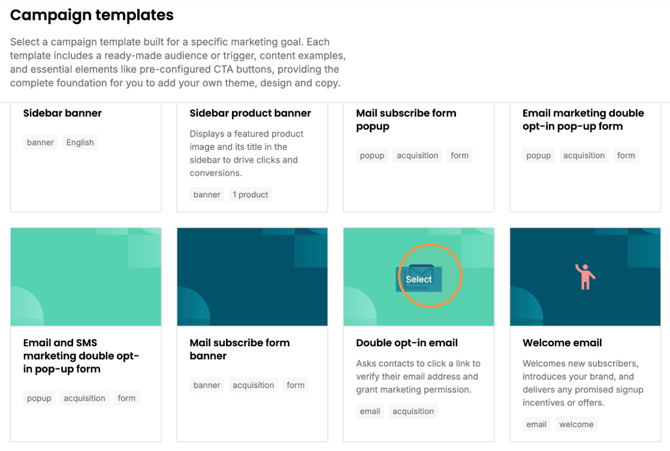
Look for the "Double opt-in email" campaign template and click "Select".
-
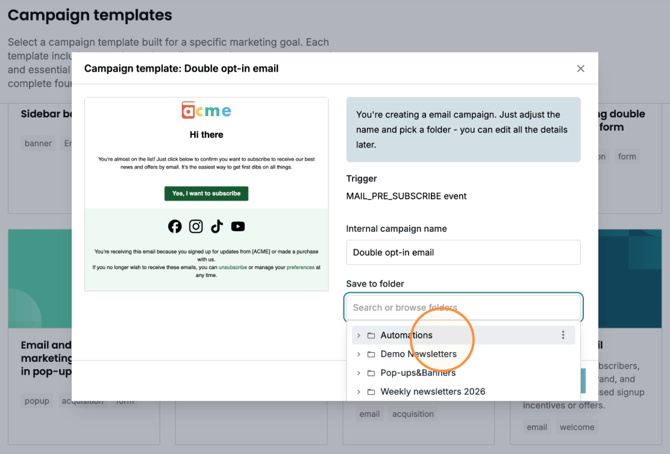
Click the "Save to folder" field and select a folder where to save the new automation.
-
Click "Continue".
-
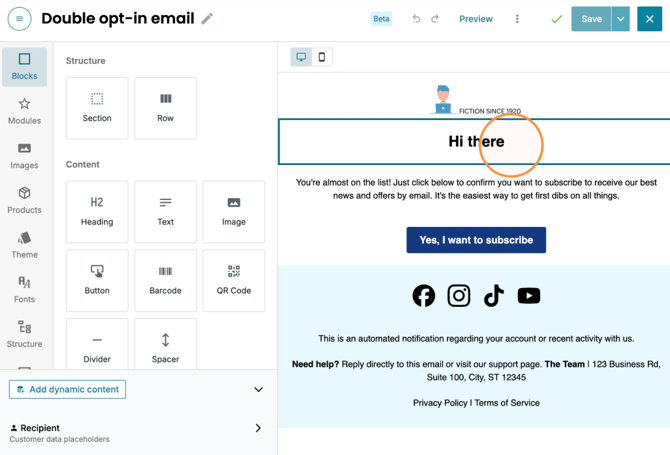
Edit the placeholder texts and visuals to fit your needs and brand. In the "Theme" settings you can easily take into use a previously created theme or create a new one for your brand.
-
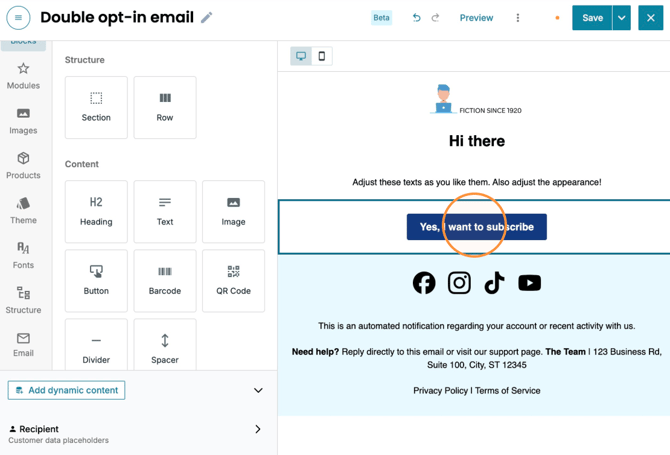
The default settings for the automation are already in place. Let's look at this button more closely.
-
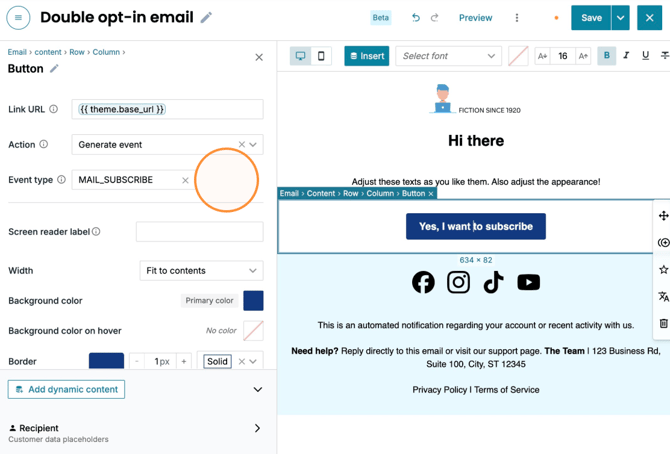
When you click on the "Yes, I want to subscribe" button you can see that it generates a "MAIL_SUBSCRIBE" event. When a customer of yours clicks receives the double opt-in email and clicks the subscribe button this information is sent into Custobar and your customer's email marketing permission is turned on.
You can also customise these events if you need to, but that may change the behaviour of the campaign template into something different.
-
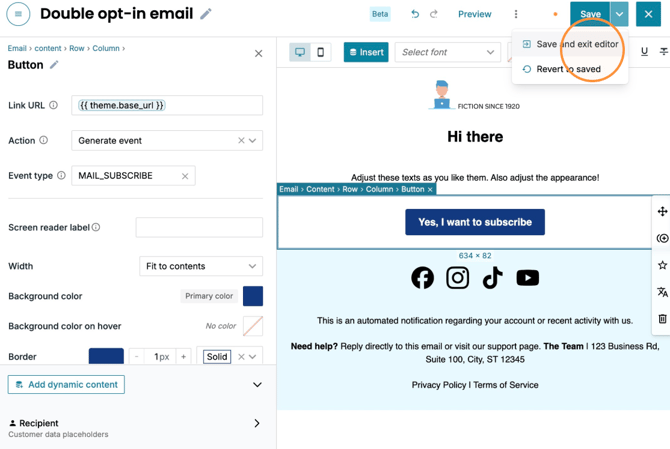
When your happy with all the edits, click "Save and exit editor".
-
Now it's time to adjust the automation sending settings. The minimum action you need to take is to select the sender. Click "Sender".
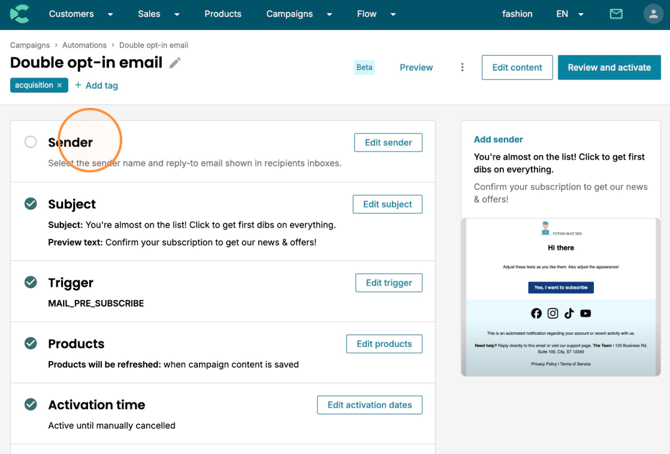
-
Click "Select sender address" or if you have not created any senders yet "Edit sender".
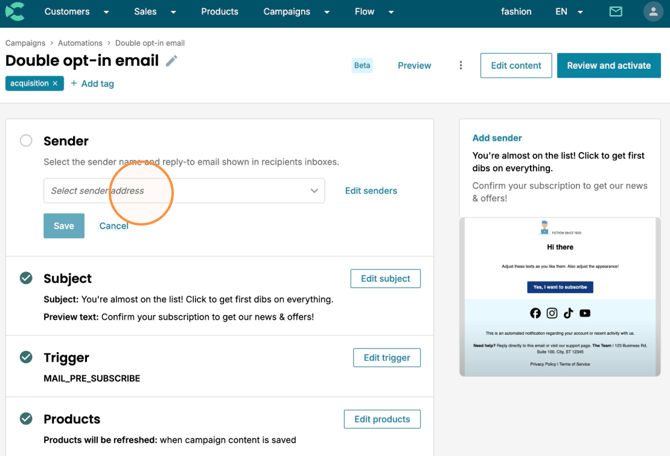
-
Select the desired sender from the drop-down menu.
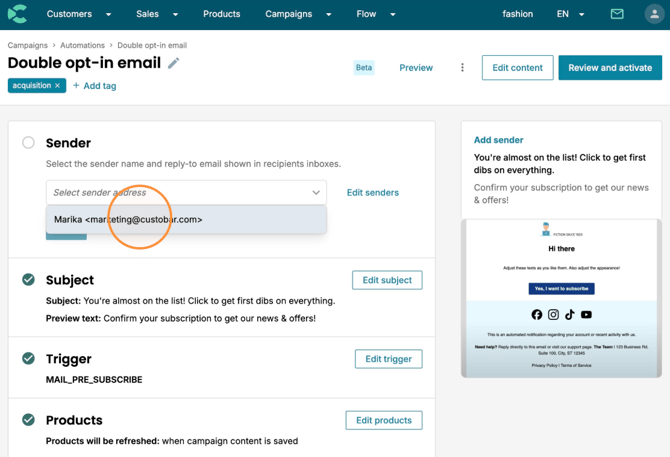
-
Click "Save".
-
Now you can edit the rest of the sending settings, like the subject or any others. There's no need to change settings if you're happy with the default ones, but we recommend checking all of them.
-
Click "Trigger".
The campaign "Trigger" is pre-set so that the automation is sent to your cstomer when they submit your Custobar sign-up form (use the "Email marketing double opt-in pop-up form" campaign template).
You can also customise these events if you need to, but that may change the behaviour of the campaign template into something different.
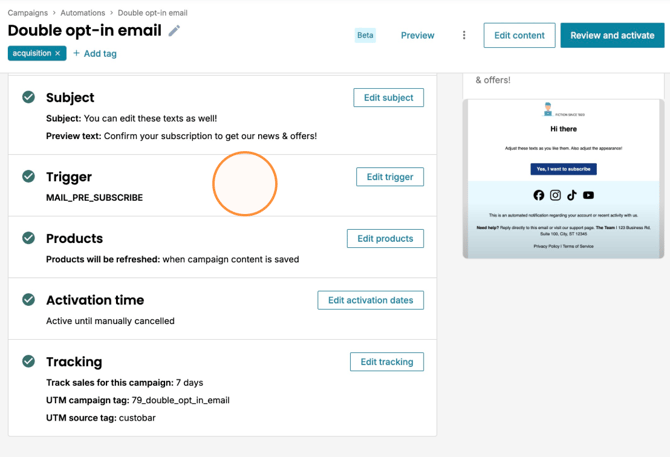
-
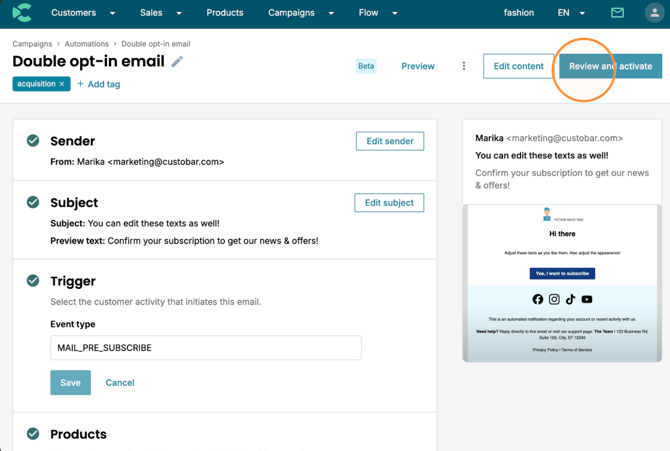
When you're ready with the sending settings, click "Review and activate".
-
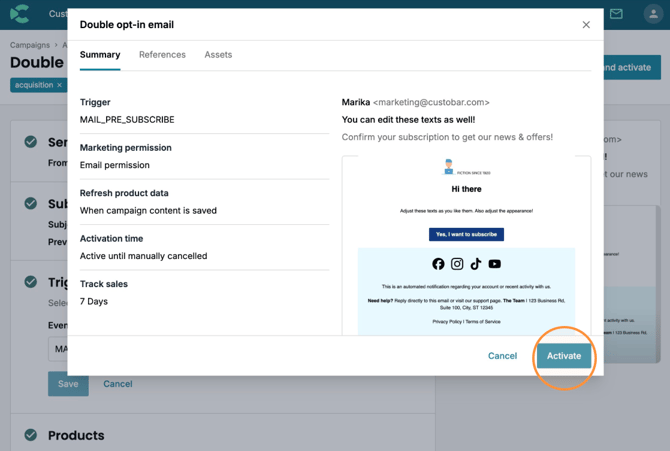
Check the summary and Click "Activate". Your double opt-in email automation is now ready and you can follow the results on the Campaign page.