
Managing multi-shop, multi-currency, and multi-language retail businesses requires adapting identical products for local markets. Fetching the same product multiple times for separate markets can be frustrating and time-consuming. Custobar’s content editor simplifies this process with product versioning, allowing you to seamlessly adjust pricing, currency, and descriptions. This simple approach is what helps us quickly create and launch multi-market email campaigns without the extra hassle.
Jump to DE version
Step #1. Drag your product into the email layout
In Custobar's new Content Editor, go to Products, search for your product and drag the product straight into your campaign layout.
Step #2. Select the product versions
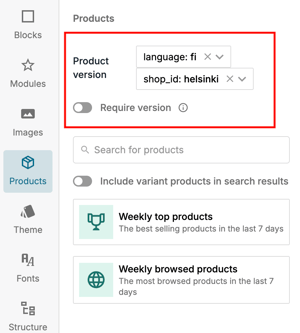
In the same Products view, use the product version selector inside the content editor to choose the correct product attributes, for example, the shop or language, for your target audience. Depending on your specific product data, your dropdown selectors may look slightly different. If you don't see the product versions selector, you do not have different product versions in your data.
Step #3. Review the updated product details
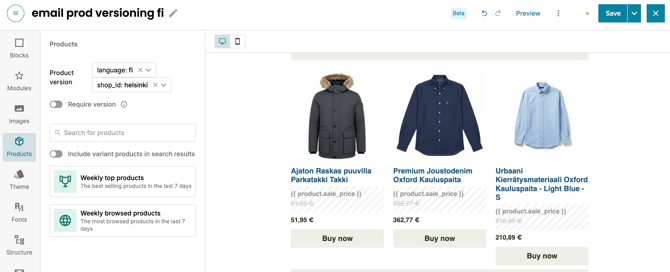
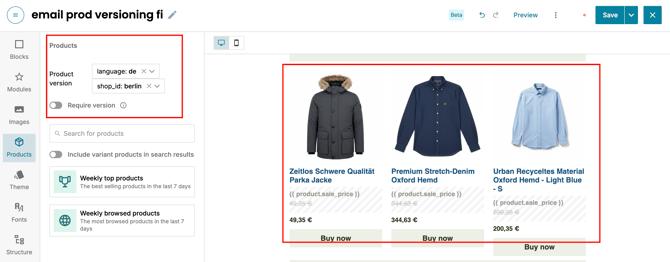
Observe how the products in the campaign automatically updates its text, price, currency, and link to match the chosen version.
How to import product versions correctly into Custobar?
Please take a look at the developer documentation regarding product versions.
Wie du Produktversionen nutzt, um deine Kampagnen im neuen Content Editor zu lokalisieren
Erfahre, wie du Produkte für Multiwährungs- und mehrsprachige Marketingkampagnen in Custobar mithilfe von Produktversionen lokalisierst.
Das Verwalten von Multi-Shop-, Multiwährungs- und mehrsprachigen Einzelhandelsgeschäften erfordert die Anpassung identischer Produkte für lokale Märkte. Das mehrfache Abrufen desselben Produkts für separate Märkte kann frustrierend und zeitaufwendig sein. Der Content Editor von Custobar vereinfacht diesen Prozess durch Produktversionierung, sodass du Preise, Währungen und Beschreibungen nahtlos anpassen kannst. Dieser einfache Ansatz hilft uns dabei, schnell und ohne zusätzlichen Aufwand länderübergreifende E-Mail-Kampagnen zu erstellen und zu starten.
Schritt #1. Ziehe dein Produkt in das E-Mail-Layout
Gehe im neuen Content Editor von Custobar zu „Produkte“, suche nach deinem Produkt und ziehe das Produkt direkt in dein Kampagnen-Layout.
Schritt #2. Wähle die Produktversionen aus
Verwende in derselben Produkte-Ansicht den Produktversions-Auswähler innerhalb des Content Editors, um die korrekten Produktattribute, zum Beispiel den Shop oder die Sprache, für deine Zielgruppe auszuwählen. Abhängig von deinen spezifischen Produktdaten sehen deine Dropdown-Auswahlmenüs möglicherweise leicht anders aus. Wenn du den Produktversions-Auswähler nicht siehst, hast du keine verschiedenen Produktversionen in deinen Daten.
Schritt #3. Überprüfe die aktualisierten Produktdetails
Beobachte, wie die Produkte in der Kampagne ihren Text, Preis, ihre Währung und ihren Link automatisch aktualisieren, um mit der ausgewählten Version übereinzustimmen.
Wie importierst du Produktversionen korrekt in Custobar?
Bitte wirf einen Blick auf die Entwicklerdokumentation zu Produktversionen.