Jump to DE Version
This guide covers:
- Emails (beta)
1. Select your content
Click on the block or element you want to adjust (e.g., a large banner, a text block, or whole product row).
2. Choose the device visibility
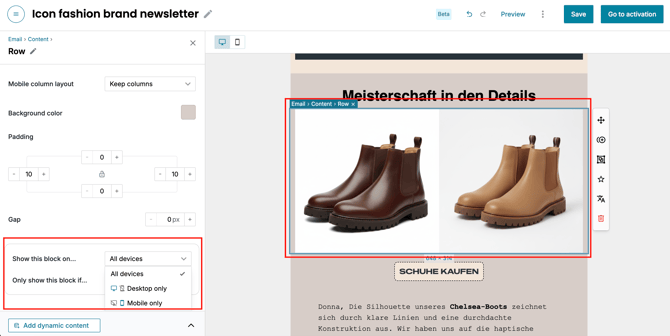
In the left-side menu for your selected block, look for the Show this block on… section. You will see three options:
- All devices: The content is visible on any device.
- Desktop only: The content will be hidden automatically on mobile (small screens).
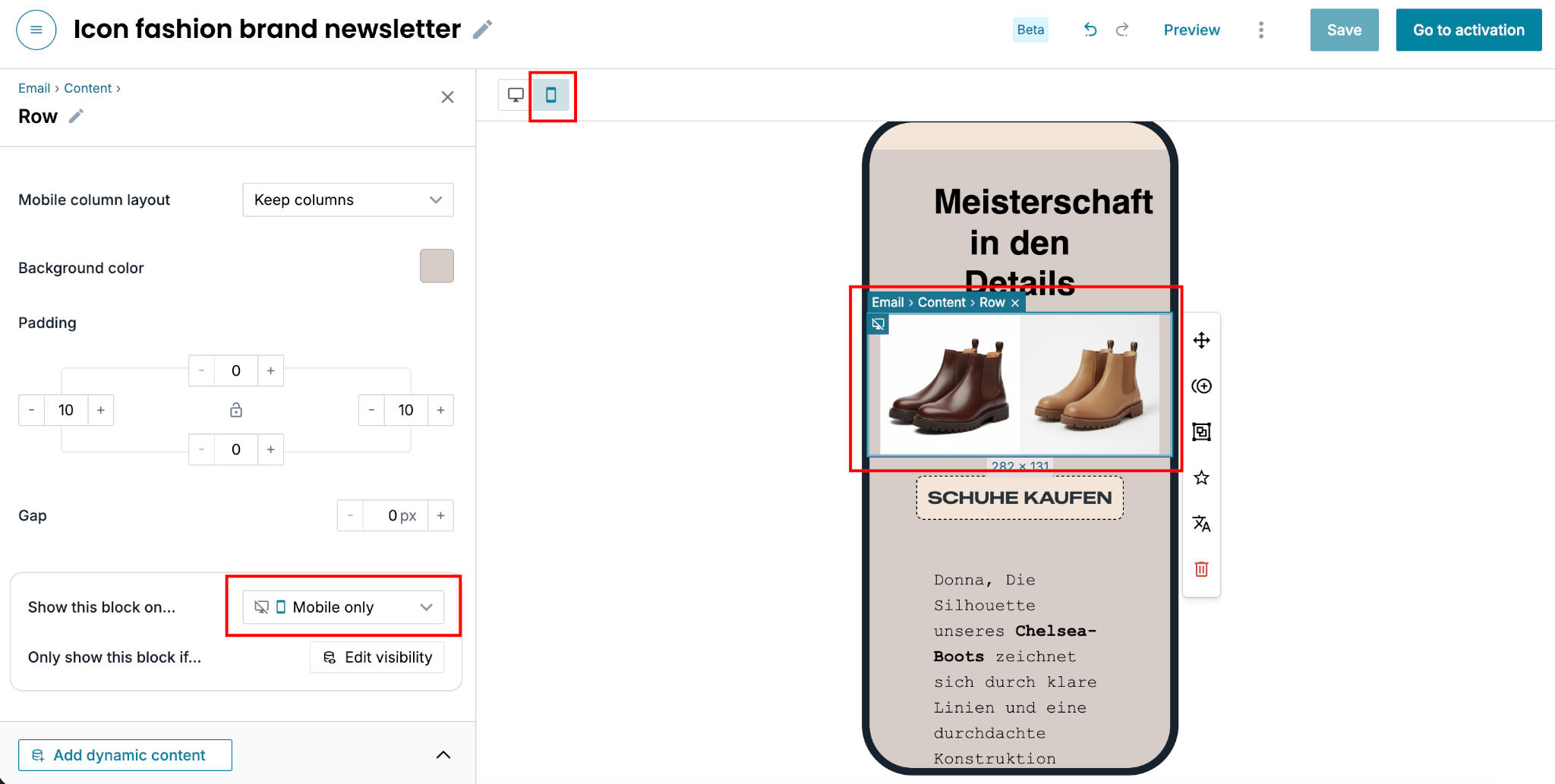
- Mobile Only: The content will only appear on mobile devices.
3. Pro-tip: The "device swap"
To create a truly professional design, you can "stack" two versions of the same content. For example:
- Add a wide version of an image and set it to Desktop only.
- Directly underneath it, add a tall/cropped version of that same image and set it to Mobile only.
- The result: Desktop users see the wide view, and mobile users see the tall view.
4. Preview your design
Use the Desktop / Mobile view buttons at the top of the Custobar editor to switch between the Desktop and Mobile icons. Confirm that your content appears and disappears exactly as you intended.
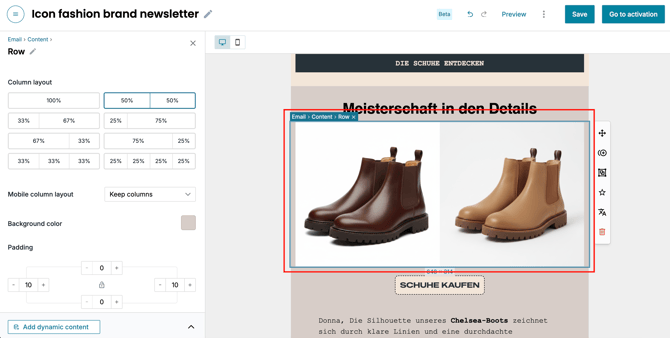
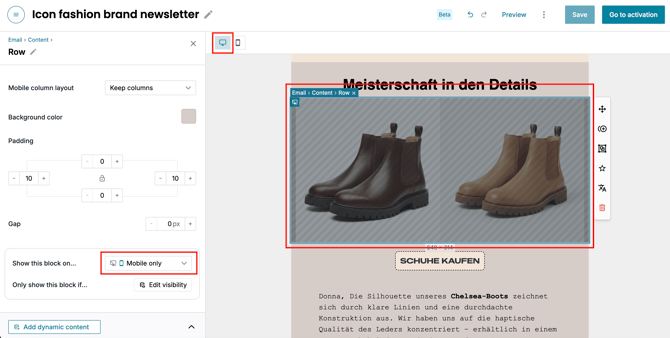
This example row is supposed to show only on mobile, so it’s shaded in the desktop view:
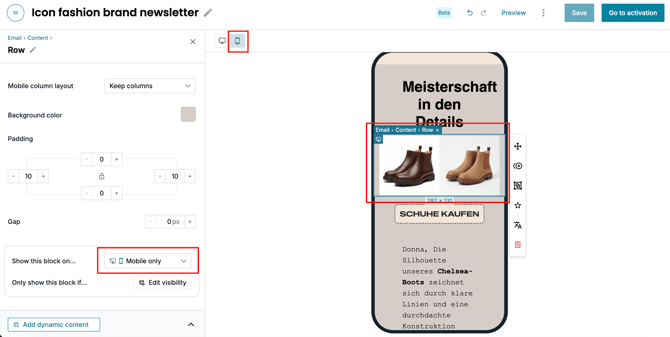
And in the mobile view, the same content shows normally:
Inhalte auf Desktop oder Mobilgeräten anzeigen oder ausblenden
Du kannst steuern, ob bestimmte Inhalte auf Mobilgeräten, dem Desktop oder beiden angezeigt werden. So kannst du dein Kampagnen-Layout optimieren, damit es perfekt aussieht, egal wie deine Kunden die E-Mail öffnen.
Anleitung für:
- E-Mails (Beta)
1. Wähle deinen Inhalt aus
Klicke auf den Block oder das Element, das du anpassen möchtest (z. B. ein großes Banner, einen Textblock oder eine ganze Produktzeile).
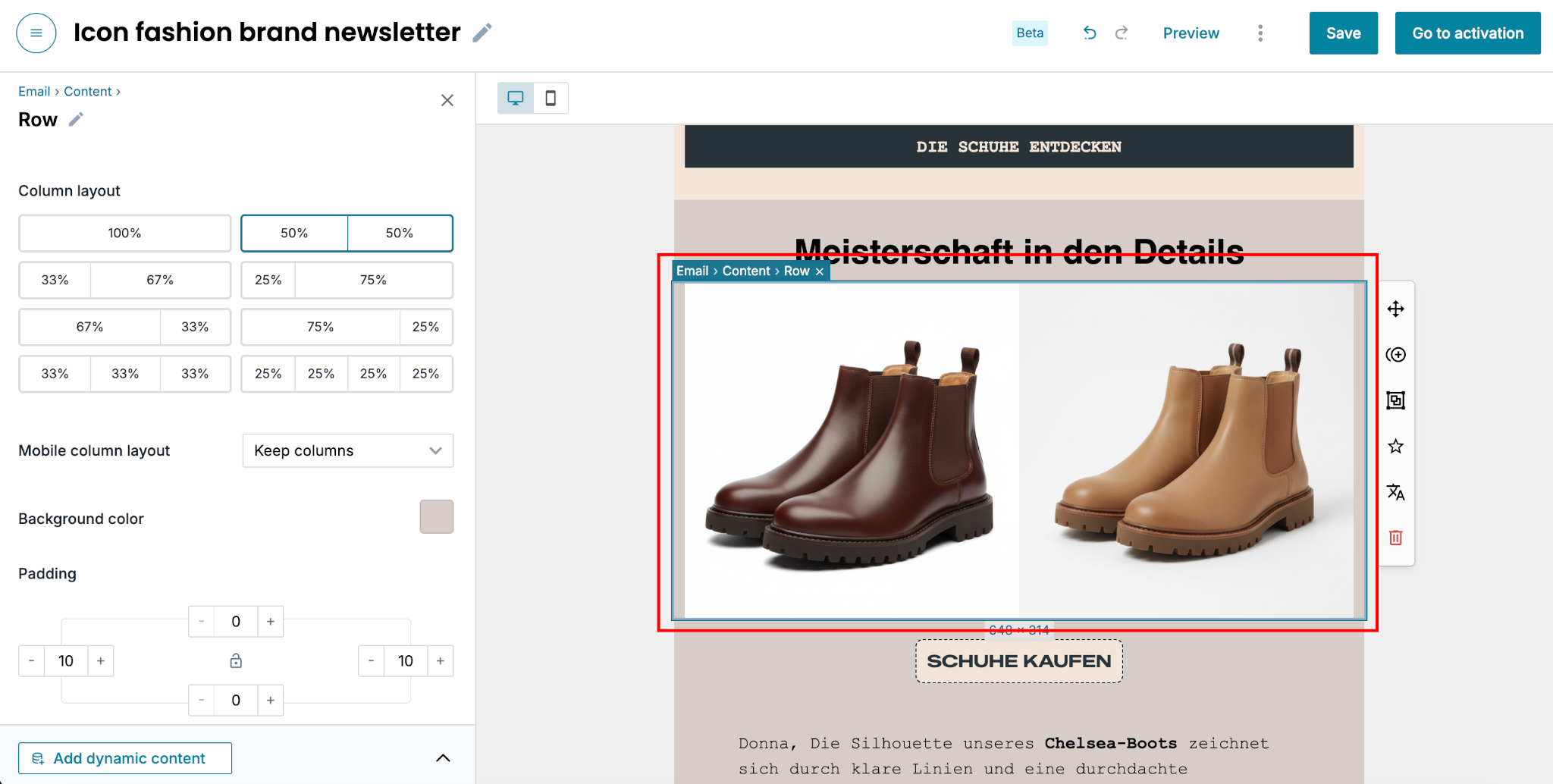
2. Wähle die Gerätesichtbarkeit
Suche im linken Menü für deinen ausgewählten Block nach dem Bereich Diesen Block anzeigen auf… section. Du siehst drei Optionen:
- Alle Geräte: Der Inhalt ist auf jedem Gerät sichtbar.
- Nur Desktop: Der Inhalt wird auf Mobilgeräten (kleinen Bildschirmen) automatisch ausgeblendet.
- Nur Mobilgeräte: Der Inhalt wird nur auf Mobilgeräten angezeigt.

3. Profi-Tipp: Der „Gerätewechsel“
Um ein wirklich professionelles Design zu erstellen, kannst du zwei Versionen desselben Inhalts „stapeln“. Zum Beispiel:
- Füge eine breite Version eines Bildes hinzu und stelle sie auf Nur Desktop.
- Füge direkt darunter eine hohe/zugeschnittene Version desselben Bildes hinzu und stelle sie auf Nur Mobilgeräte.
- Das Ergebnis: Desktop-Nutzer sehen die breite Ansicht und Mobile-Nutzer sehen die hohe Ansicht.
4. Vorschau deines Designs
Verwende die Desktop- / Mobil-Ansichts-Schaltflächen oben im Custobar-Editor, um zwischen den Desktop- und Mobil-Icons zu wechseln. Überprüfe, ob deine Inhalte genau wie gewünscht erscheinen und verschwinden.
Diese Beispielzeile soll nur auf Mobilgeräten angezeigt werden, daher ist sie in der Desktop-Ansicht schraffiert:

Und in der Mobil-Ansicht wird derselbe Inhalt normal angezeigt: